Overview
Seleqt allows you to connect your email account as a sender to use in your outreach campaigns. This guide walks you through the full connection process in just a few steps.
Step-by-Step Instructions
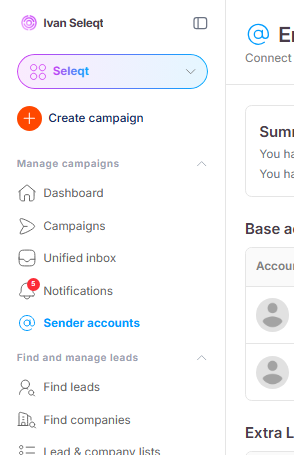
1. Go to Sender Accounts
In the left sidebar, click on Sender Accounts:
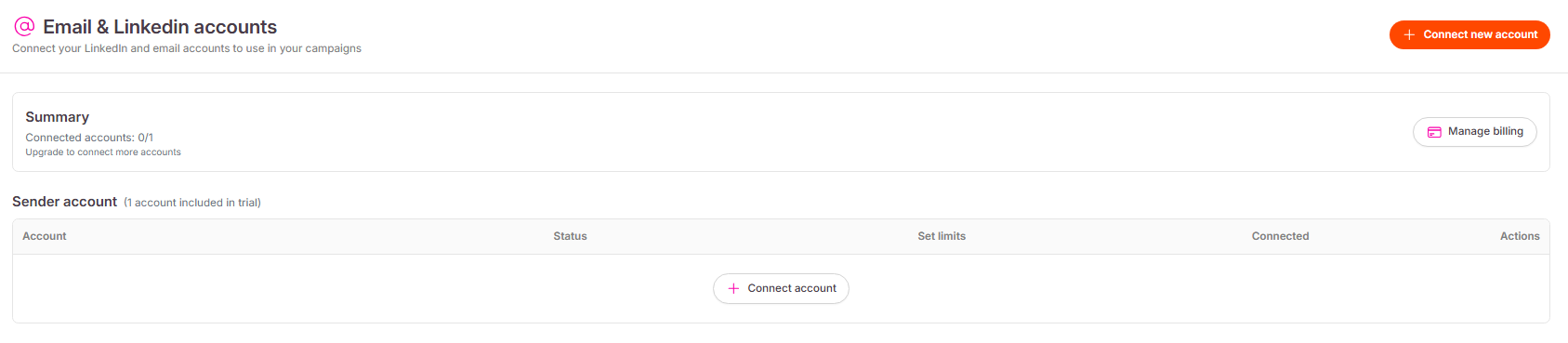
2. Click "Connect Account"
On the Sender Accounts page, click the Connect account button in the middle of the page, or use the Connect new account button in the top-right corner:
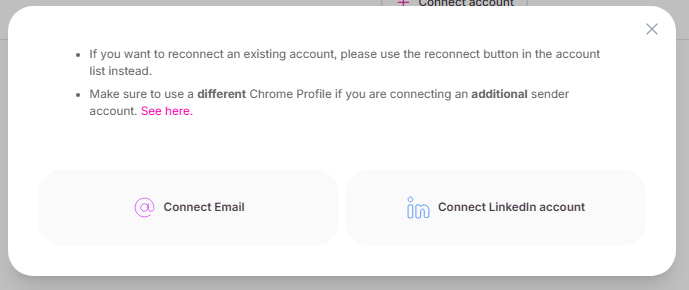
3. Choose "Connect Email"
A popup will appear. Click Connect Email :
4. Select your email provider
You will be taken to a new page. Select the type of email account you want to connect:
Google — for Gmail accounts
IMAP — for all other email providers
Microsoft — for Outlook or Microsoft 365 accounts
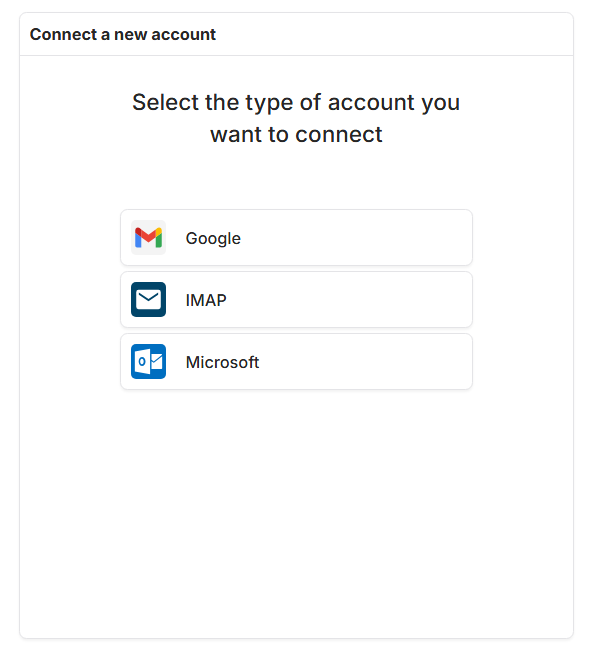
Select your email provider and follow the on-screen steps to complete the connection. Once done, your account will appear in the Sender Accounts section along with its sending limits.
