Seleqt's Pipedrive integration allows you to seamlessly transfer qualified leads from your campaigns directly into your Pipedrive CRM. This integration streamlines your lead management process by automatically syncing contact information and campaign data, ensuring no potential opportunities fall through the cracks.
Before you can start transferring leads, you'll need to connect your Pipedrive account to Seleqt:
Navigate to Settings in your Seleqt account
Look for the Integrations section
Find Pipedrive and click Connect
You'll be redirected to Pipedrive to authorize the connection
Log in with your Pipedrive credentials and grant the necessary permissions
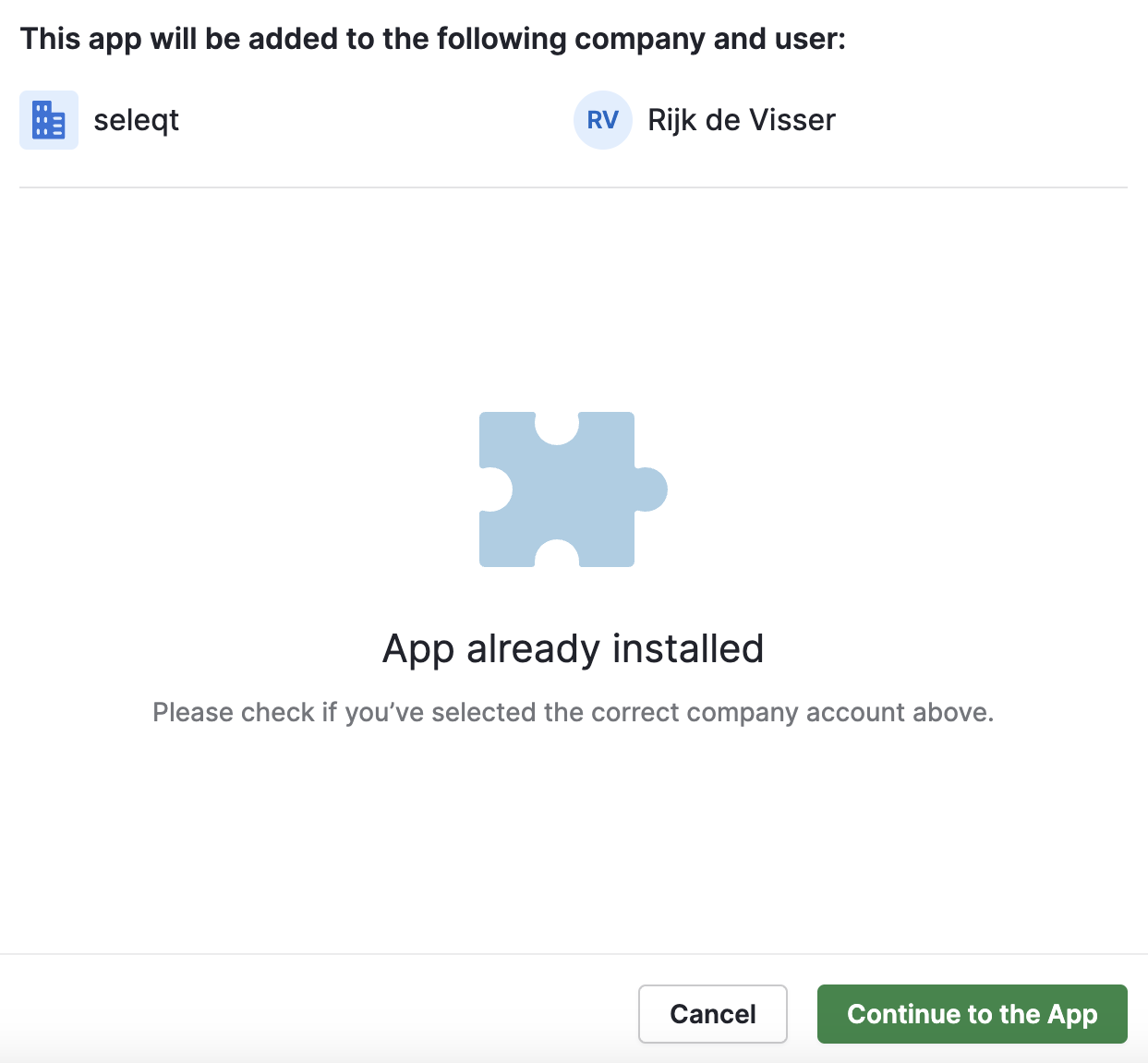
Once authorized, you'll be redirected back to Seleqt
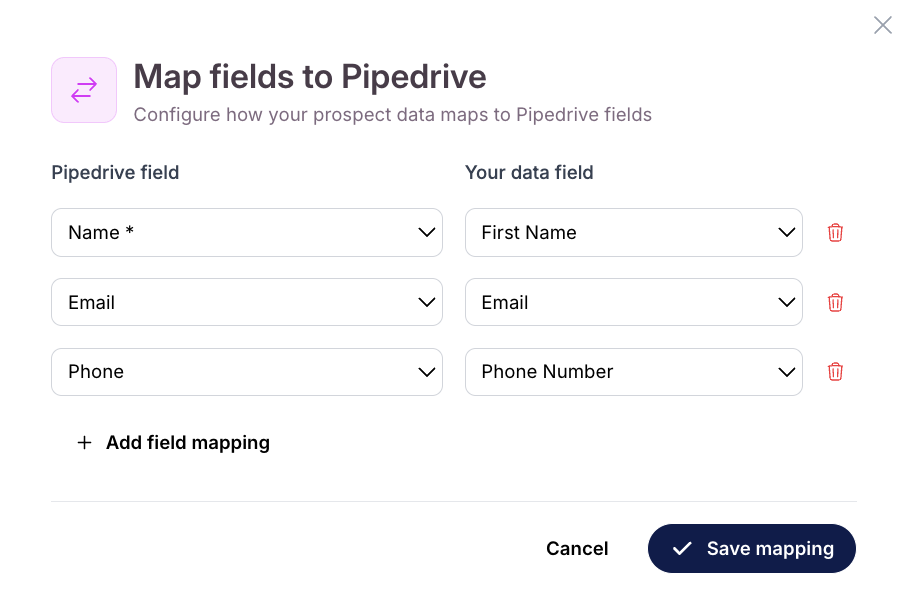
Map the Pipedrive fields with your Seleqt fields. When done, click on "Save mapping" and the integration is successful
Once your Pipedrive integration is active, you can easily push qualified leads from your campaigns to your CRM:
Go to your "Campaigns"
Select the campaign containing the leads you want to transfer
Go to the "Leads" tab
Use the "Filter" to narrow down, for example all the leads who have responded to your outreach by filtering on the “Replied” status
Select the leads you want to transfer by checking the boxes next to their names
Click the "More Actions" button (located above the list)
Select "Push to Pipedrive" from the dropdown menu
The selected leads will be automatically created as contacts in your Pipedrive CRM, complete with all the relevant information collected during your campaigns.
When you push leads to Pipedrive, contact information like name, email, phone and company are transferred.
If you encounter issues with the Pipedrive integration:
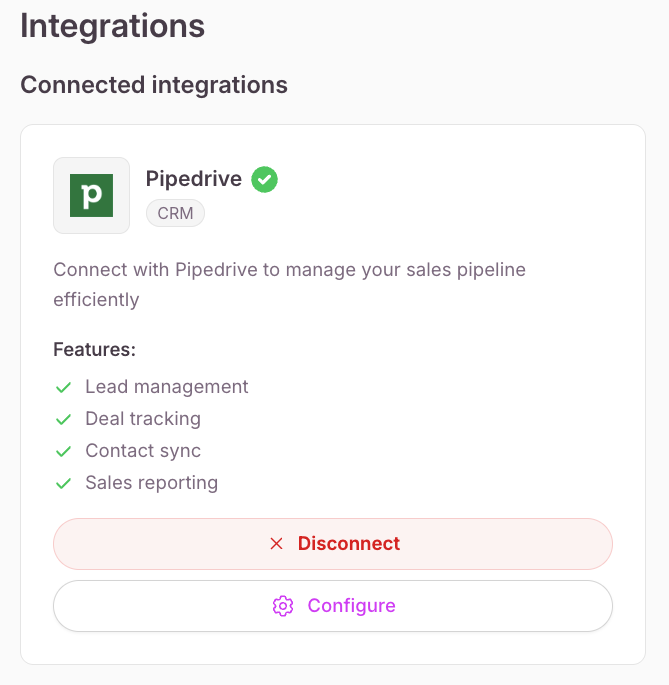
Connection Issues: Verify your Pipedrive connection is still active in Settings
Missing Leads: Check that you have the necessary permissions in Pipedrive to create contacts
Data Sync Problems: Ensure your Pipedrive account has available contact limits
Field Mapping: You can adjust this by clicking on the "Configure" button