Filtering your leads in a smart way is important for generate a great list and running a campaign. Stop making lead lists with multiple industries or every different seniority levels in it. Build one lead list per job title and industry.
💡 Example: "CMOs in SaaS companies with 50–500 employees" is way more effective than “Marketing people in tech.”
You can start searching new clients to grow your business! 😁
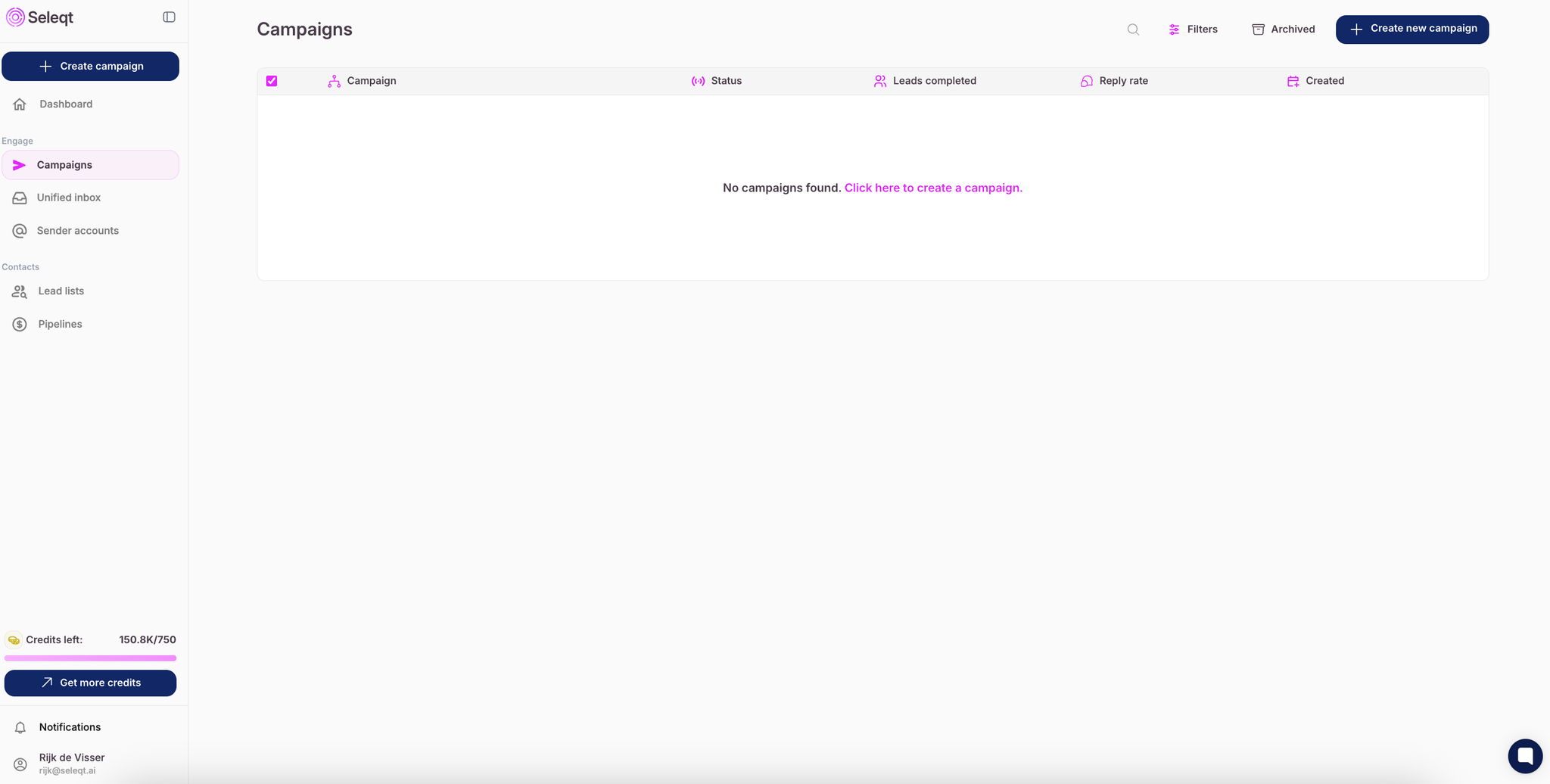
You can simply click “Create campaign" or click on the empty tabel and your first campaign will be initiated.
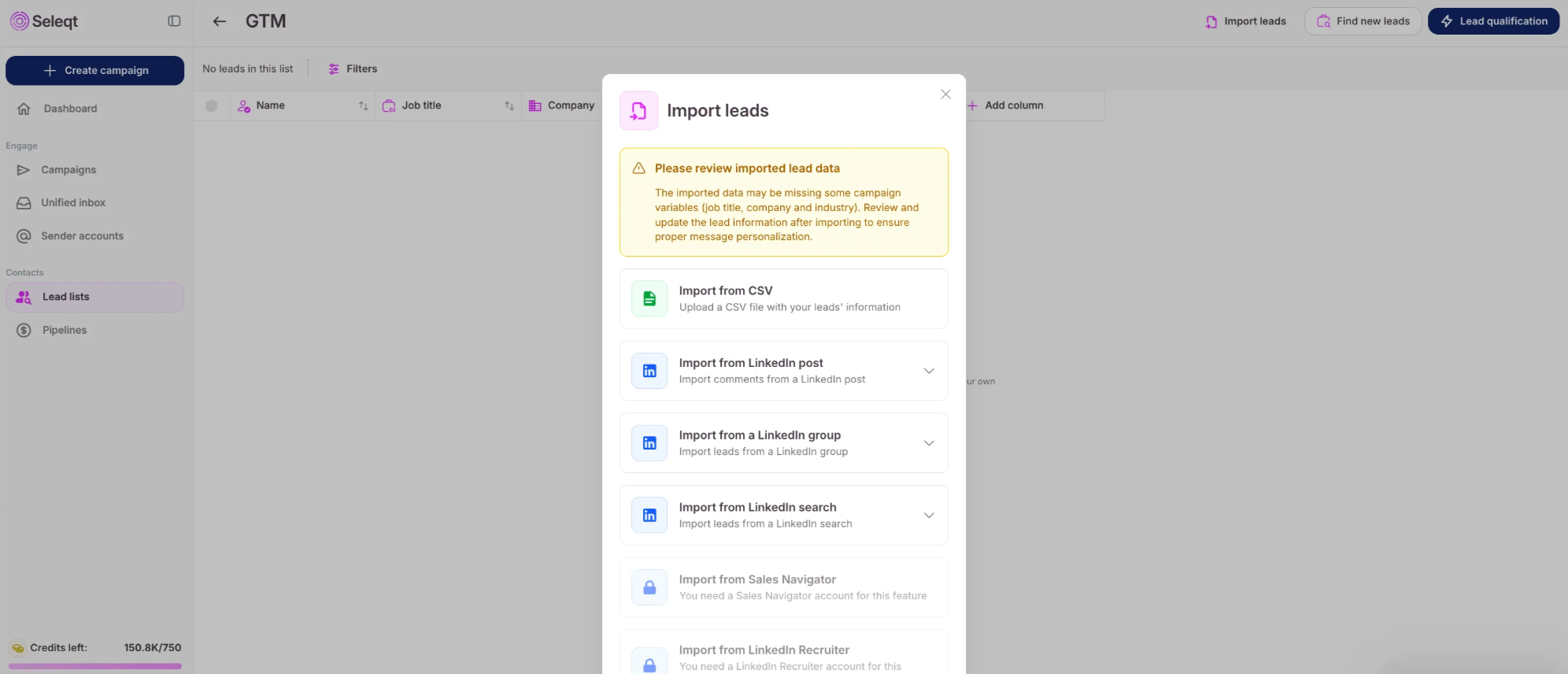
Click on “Add new leads” to add leads to your new campaign. You will see multiple options to add leads to your campaign:
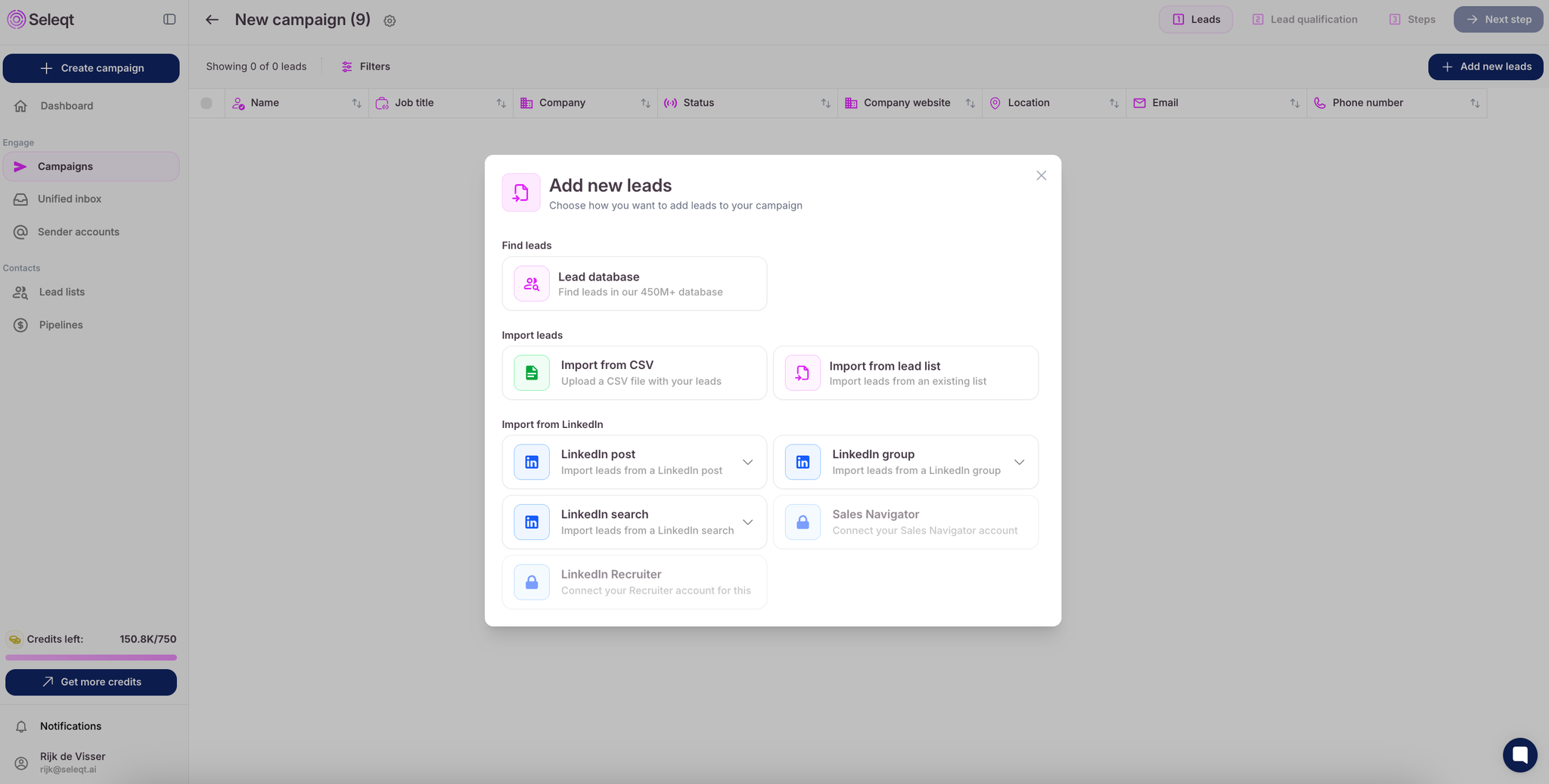
If you connect a LinkedIn Sales Navigator or LinkedIn Recruiter account to Seleqt, the import options will become available to you.
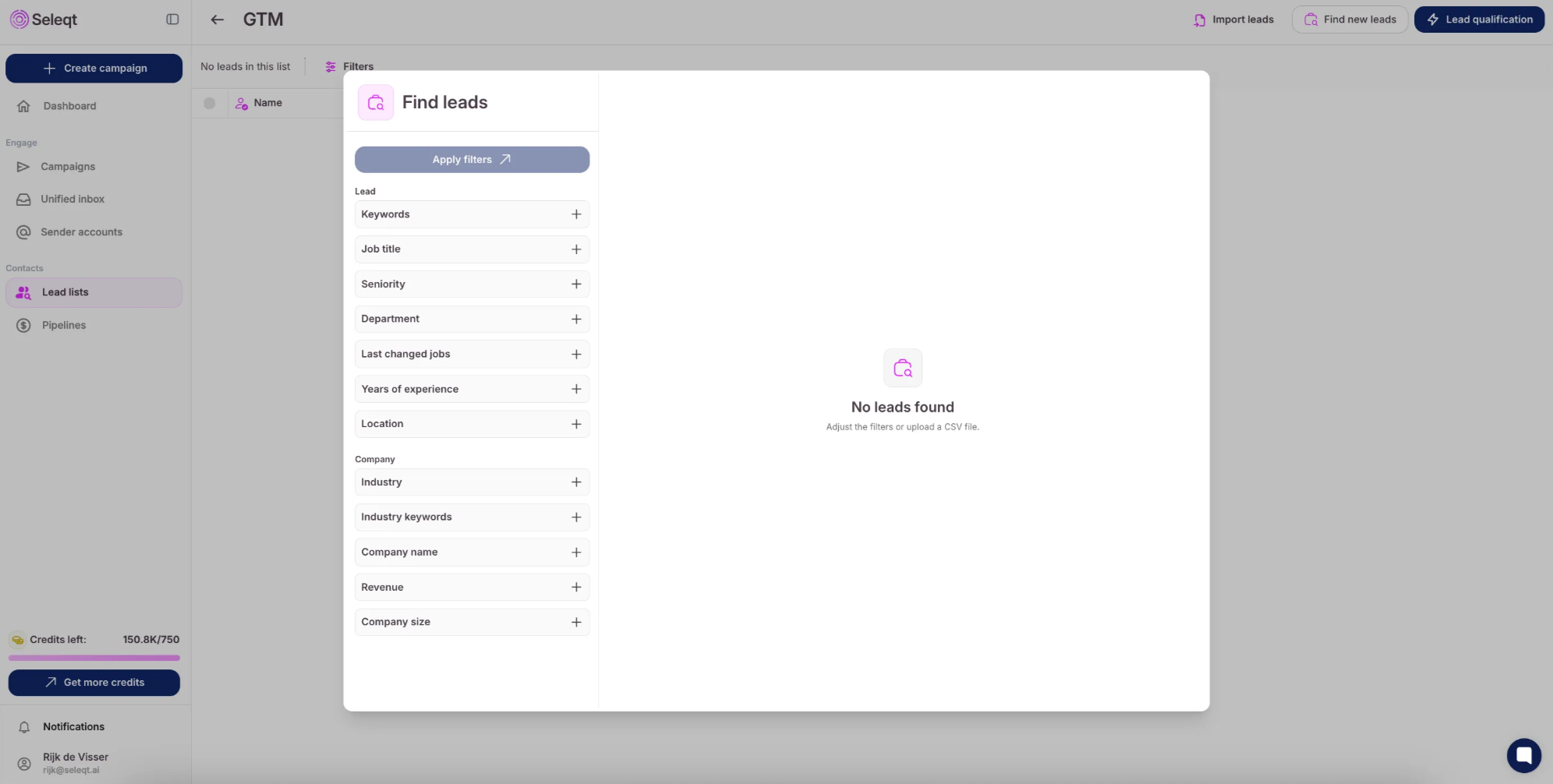
Adjust the filters based on your preferences and ICP focus, then click the “Apply filters” button to view the leads that match your criteria.
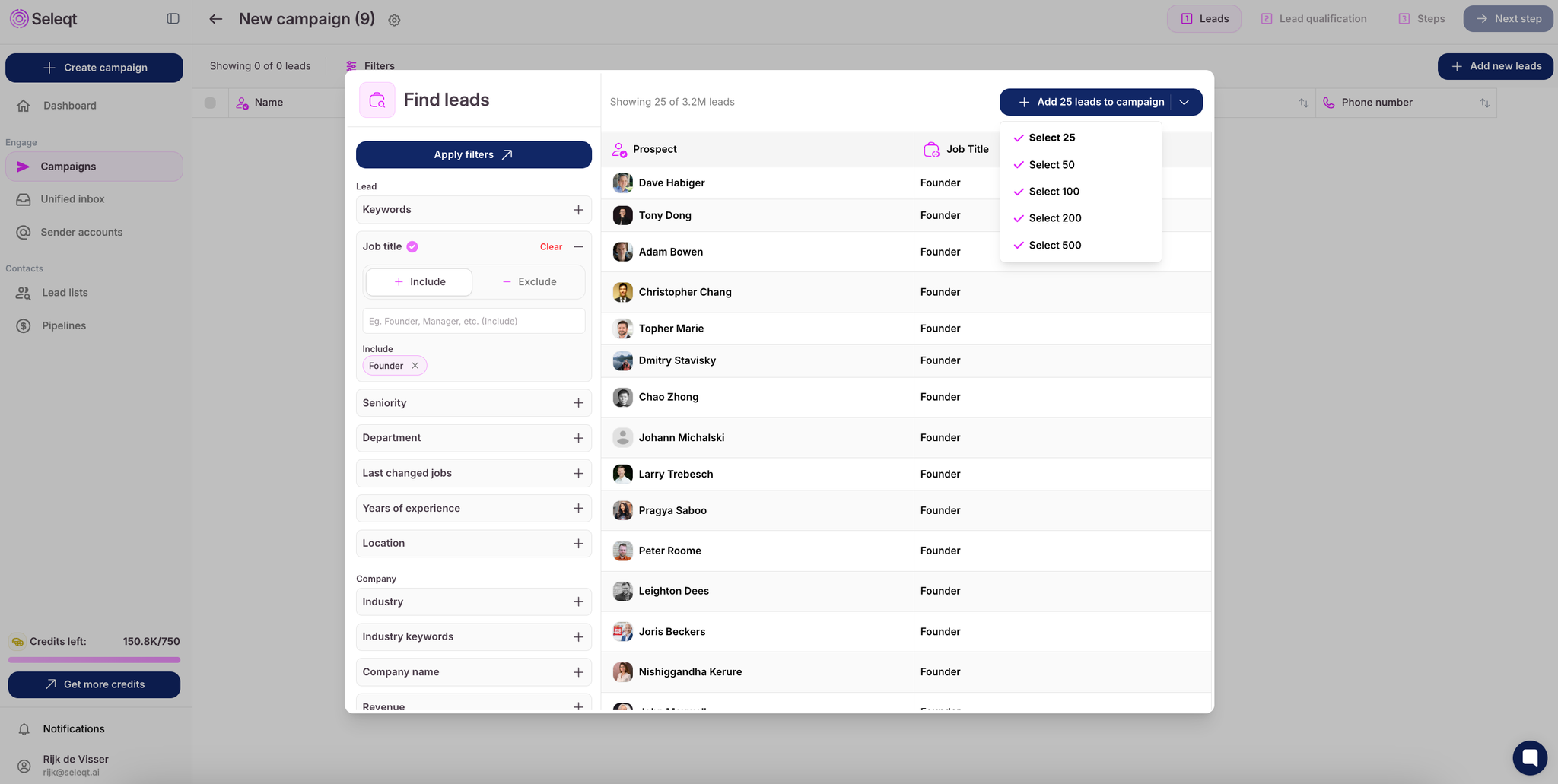
Click on the “Add … leads to campaign” button to add the found leads to your campaign. You can decided how many leads you want to add.
Tip: Filter leads by one job title + one industry at a time in a campaign. This makes your messaging focused, personalized and more relevant.
First, create a CSV file using Excel or Google Sheets with columns like First Name, Last Name, Email, Phone, and Company. Save the file as .csv
Next, go to “Add new leads” in your campaign and click on “Import from CSV”
Upload your CSV file from your computer.
The software will prompt you to match each column in your file to the correct field in Seleqt (for example, match "Email" to "Email Address"). Make sure everything lines up correctly.
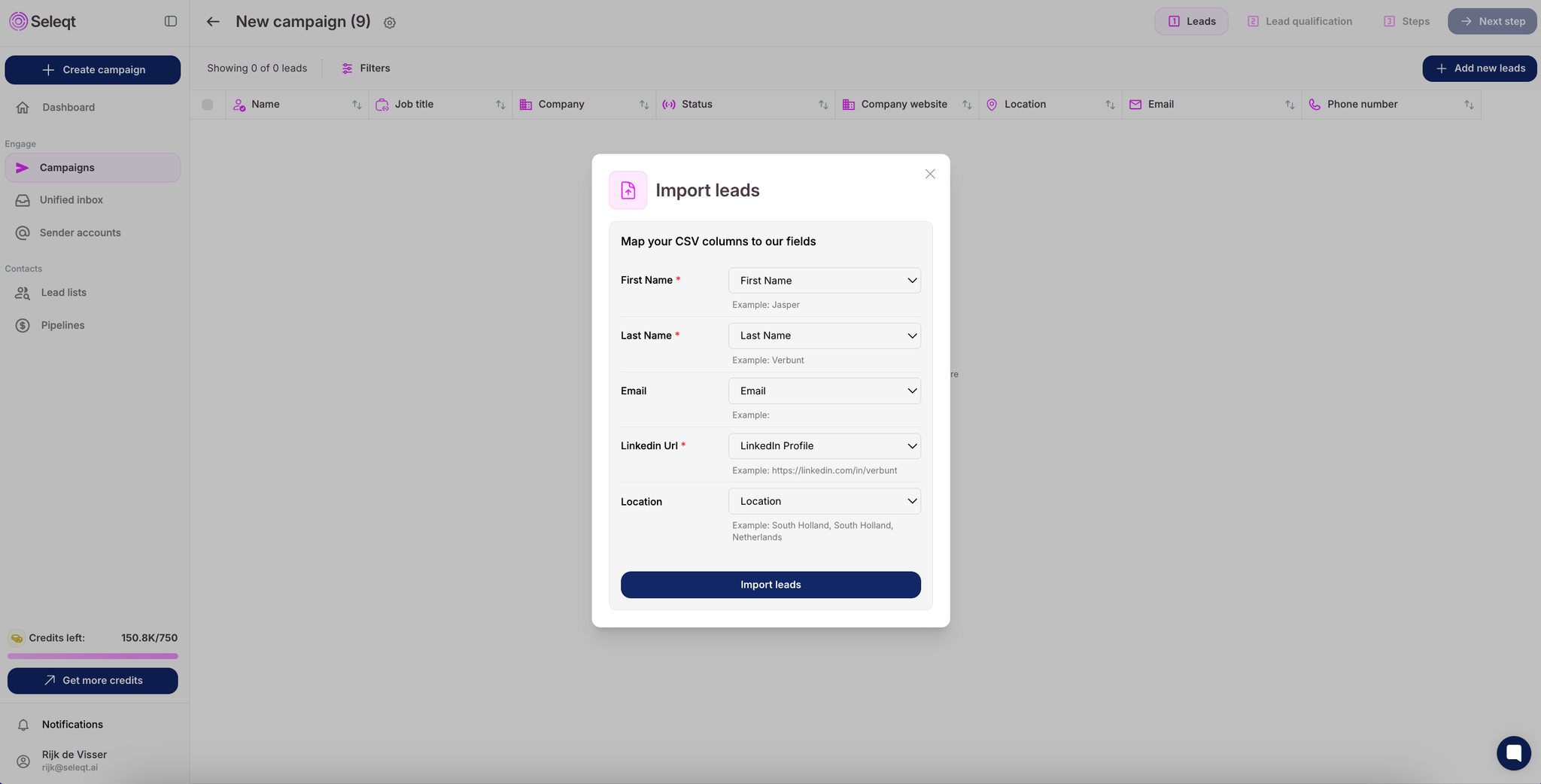
Tip: you can also add custom fields on the button of this mapping pop-up.
Once you’ve reviewed the mapping, start the import. The leads will be added to your campaign.
That’s it! Just make sure your data is clean and clearly labeled before you begin.
To import leads from a LinkedIn post, copy the URL of the post directly from LinkedIn.
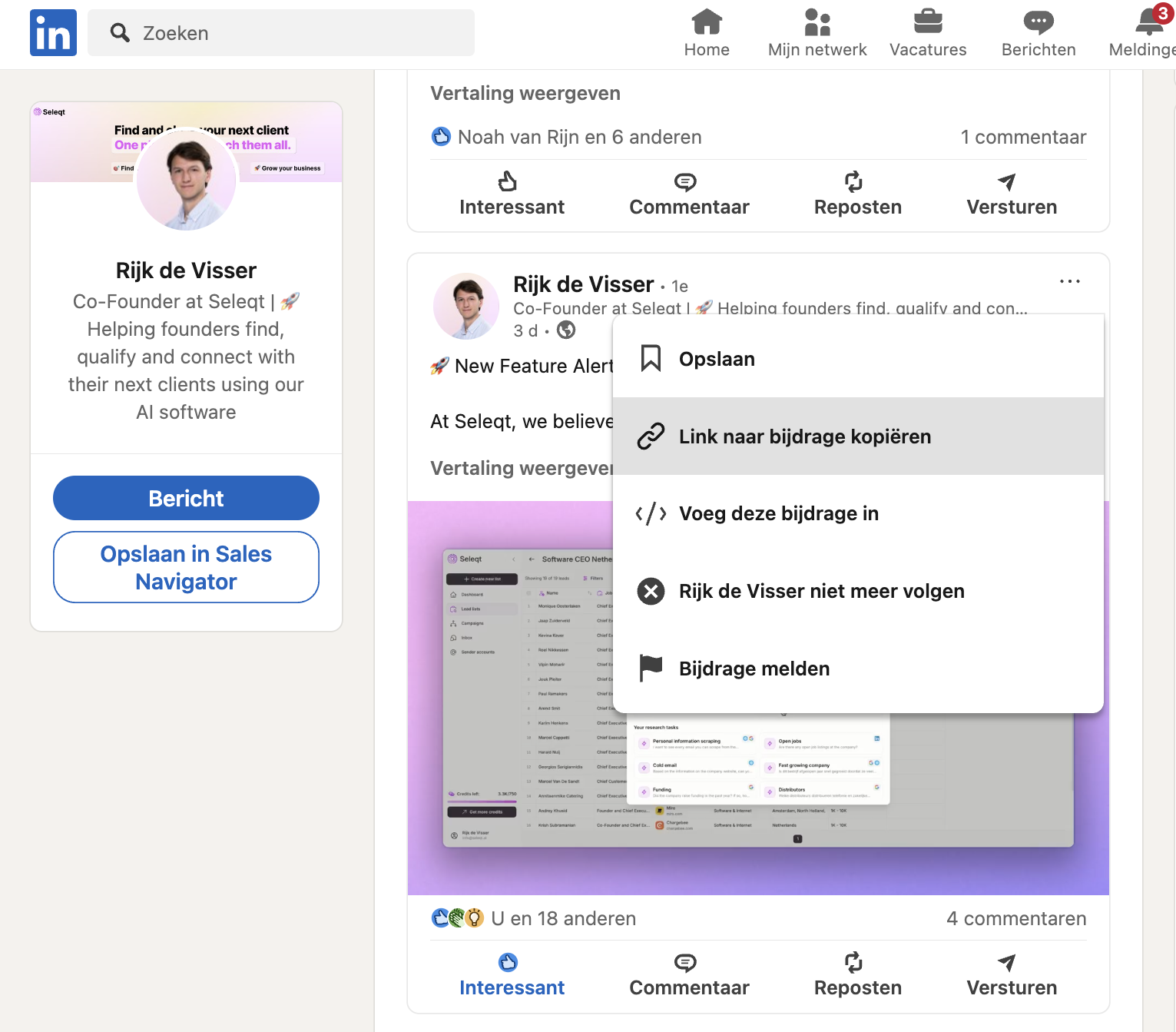
In Seleqt, go to the “Import from LinkedIn post” option and paste the URL. Adjust the number of leads you would like to import from the post.
Seleqt will scan the post for commenters and extract their profile information where available.
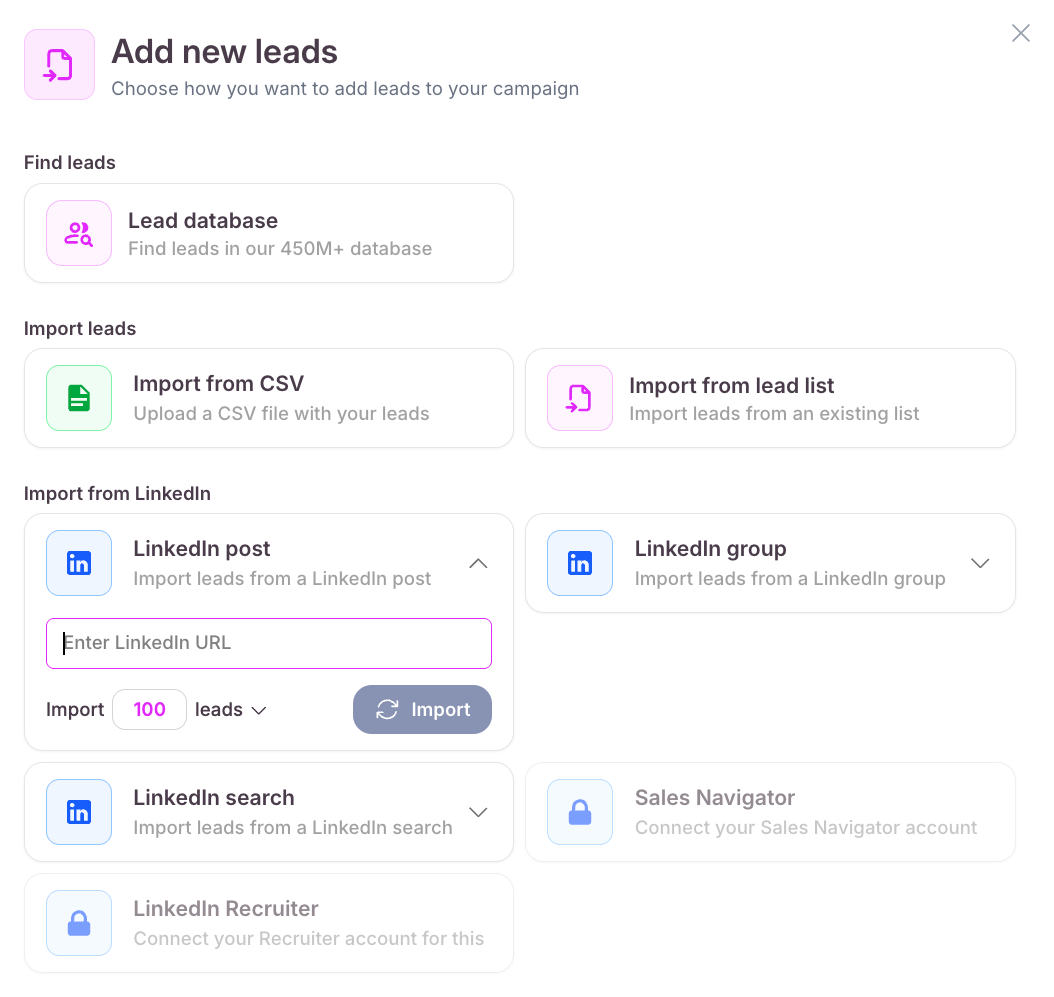
Confirm the import to add them to your lead list.
First, open the LinkedIn group page and copy the group’s URL.
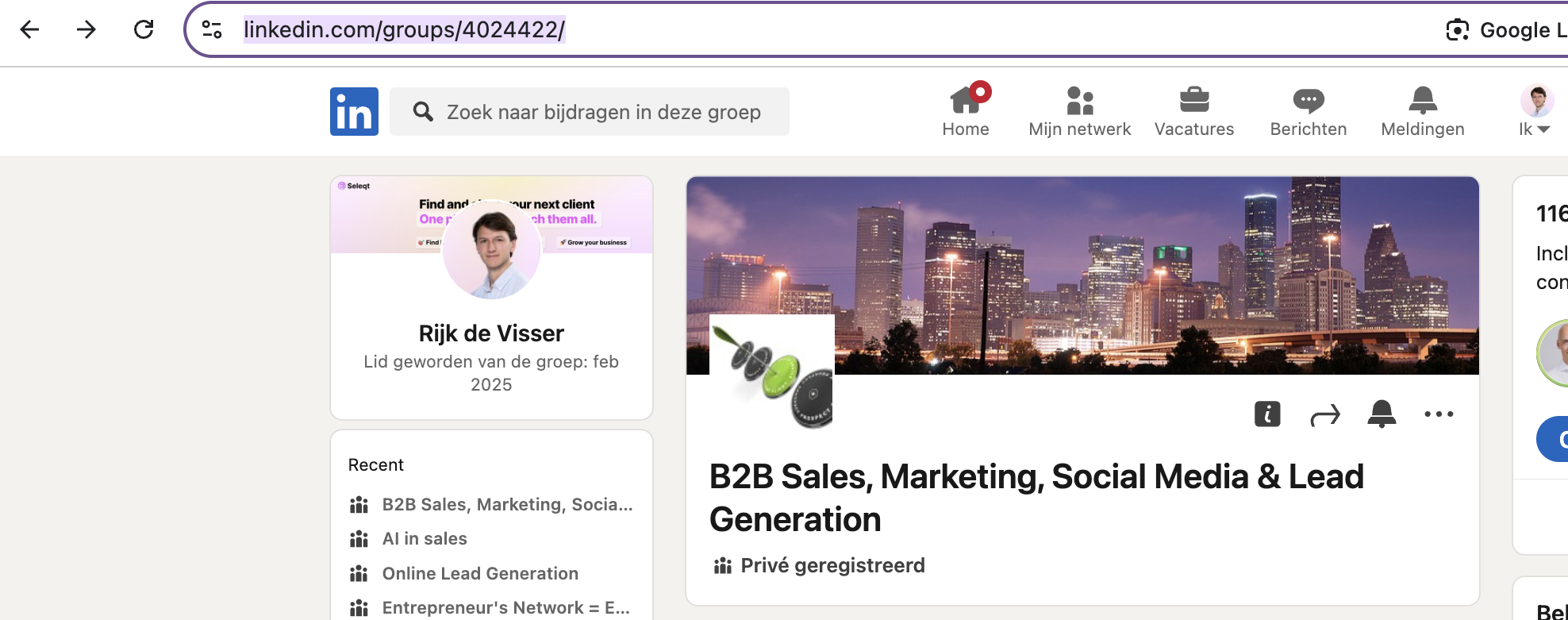
In Seleqt, go to the “LinkedIn Group import” option and paste the URL. Adjust the number of leads you would like to import from the group. Seleqt will gather member profiles and import them to your lead list.
Perform a search on LinkedIn via the standard search bar and use the filters (e.g., job title, location, company), then copy the URL from the search results page.
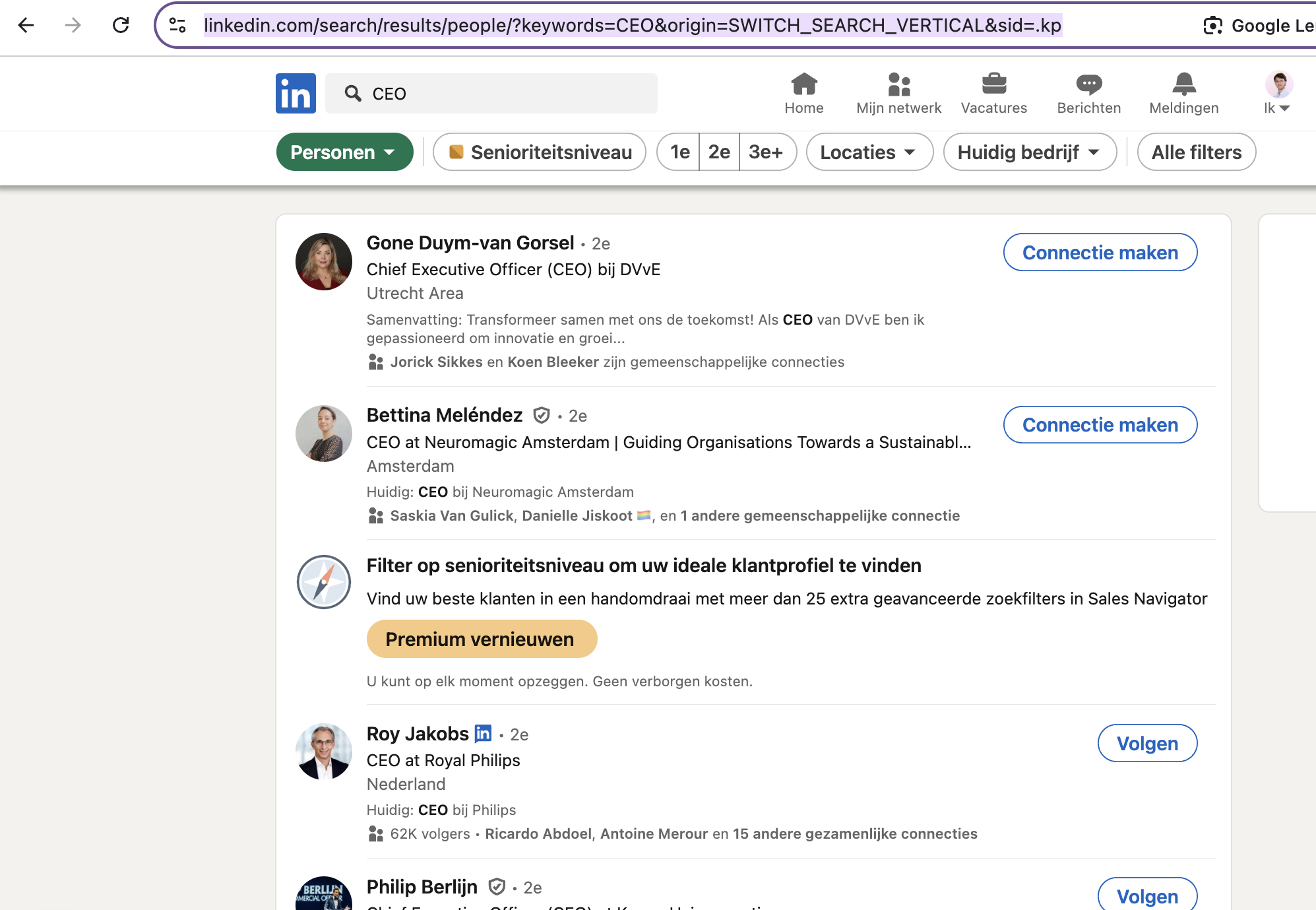
Paste this URL link into Seleqt under the “Import from LinkedIn Search” option. Seleqt will pull profiles from that search result for you to import. Adjust the number of leads you would like to import from the search and confirm.
In Sales Navigator, run your search using the available filters. It is important to know that we can only import leads and NO accounts (companies). Once the results are loaded, copy the full URL from your browser’s address bar. The URL have to start with www.linkedin.com/sales/search/people
And make sure it is not a saved search list.
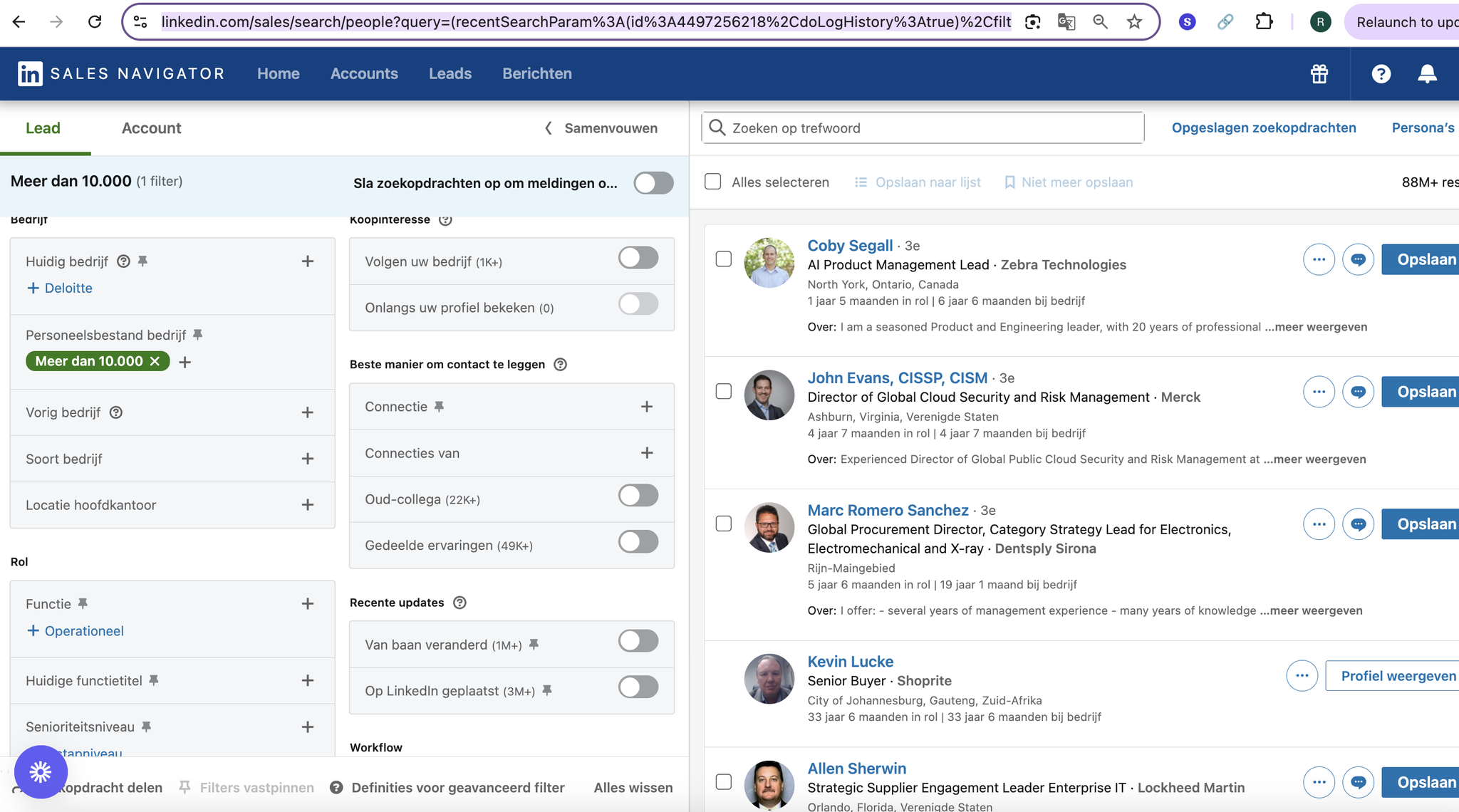
Paste the URL into Seleqt under the “Sales Navigator import” option. Adjust the number of leads you would like to import from the search. Seleqt will gather lead data from the search results and import it in your lead list.
This works the same for a LinkedIn recruiter account. But then you paste the URL under the “LinkedIn Recruiter” option in Seleqt.
You can create your first lead list in the “Lead List” section. Once you’ve created your lead list, you’ll see three options in the top right corner of your screen:
Import leads
You can import leads via CSV or LinkedIn. See above for detailed instructions.
Find new leads
You can find leads in our 450M+ lead database. See above for detailed instructions.
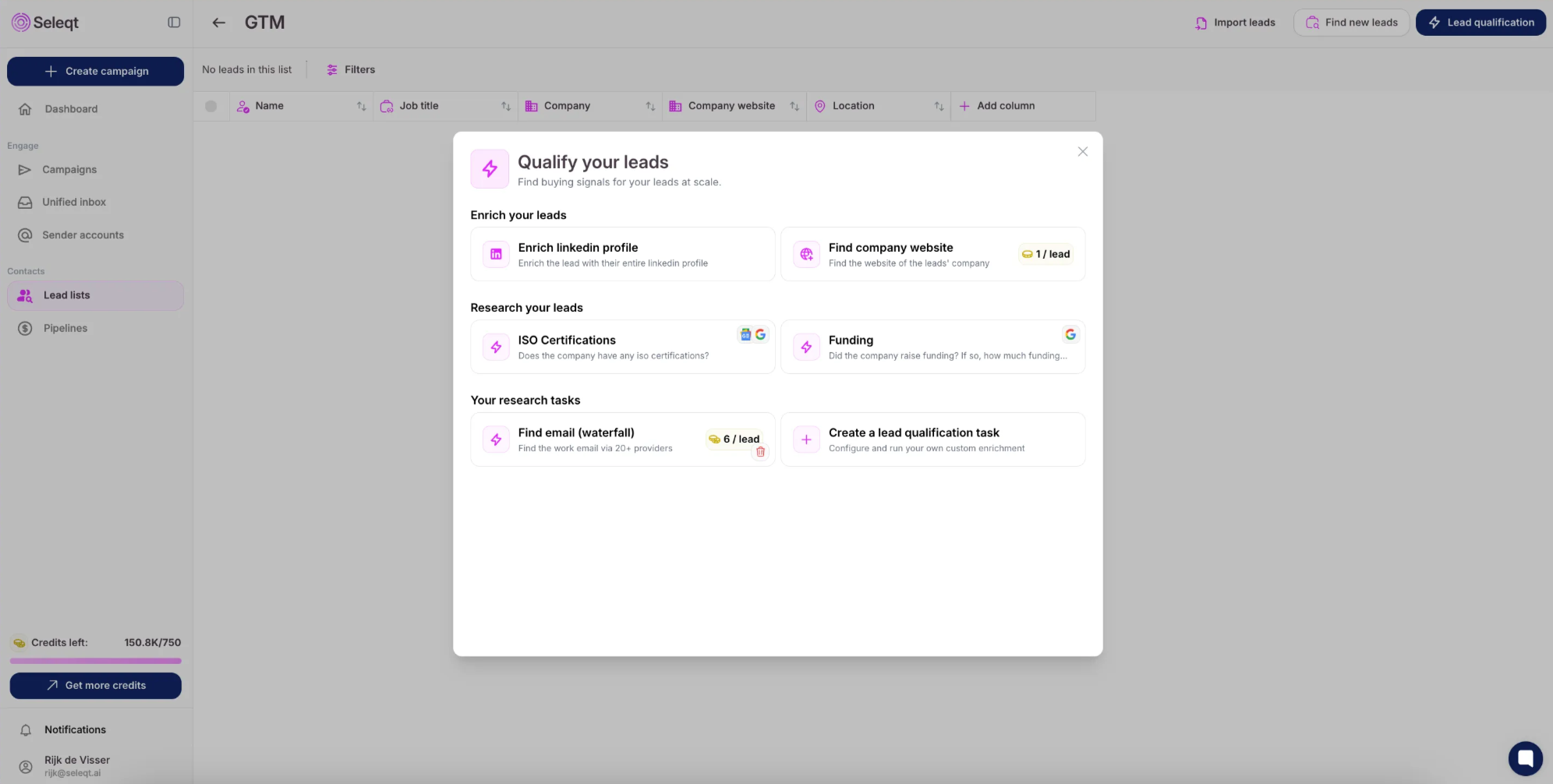
Lead qualification
You can qualify your leads by researching the lead or their company to find buying signals that are relevant to your services. This is all automated by our AI, which means you can research 1000+ leads in seconds.
Great you have now found all your potential clients ✅, but want to add them to a campaign so you can reach out to them.
You can select each candidate by clicking the empty box at the beginning of each row if you want to select them one by one.
However, since speed is key you can also choose to select more candidates at once by clicking the empty box at the top of the table. Here you will be given the ability to select multiple leads at once.
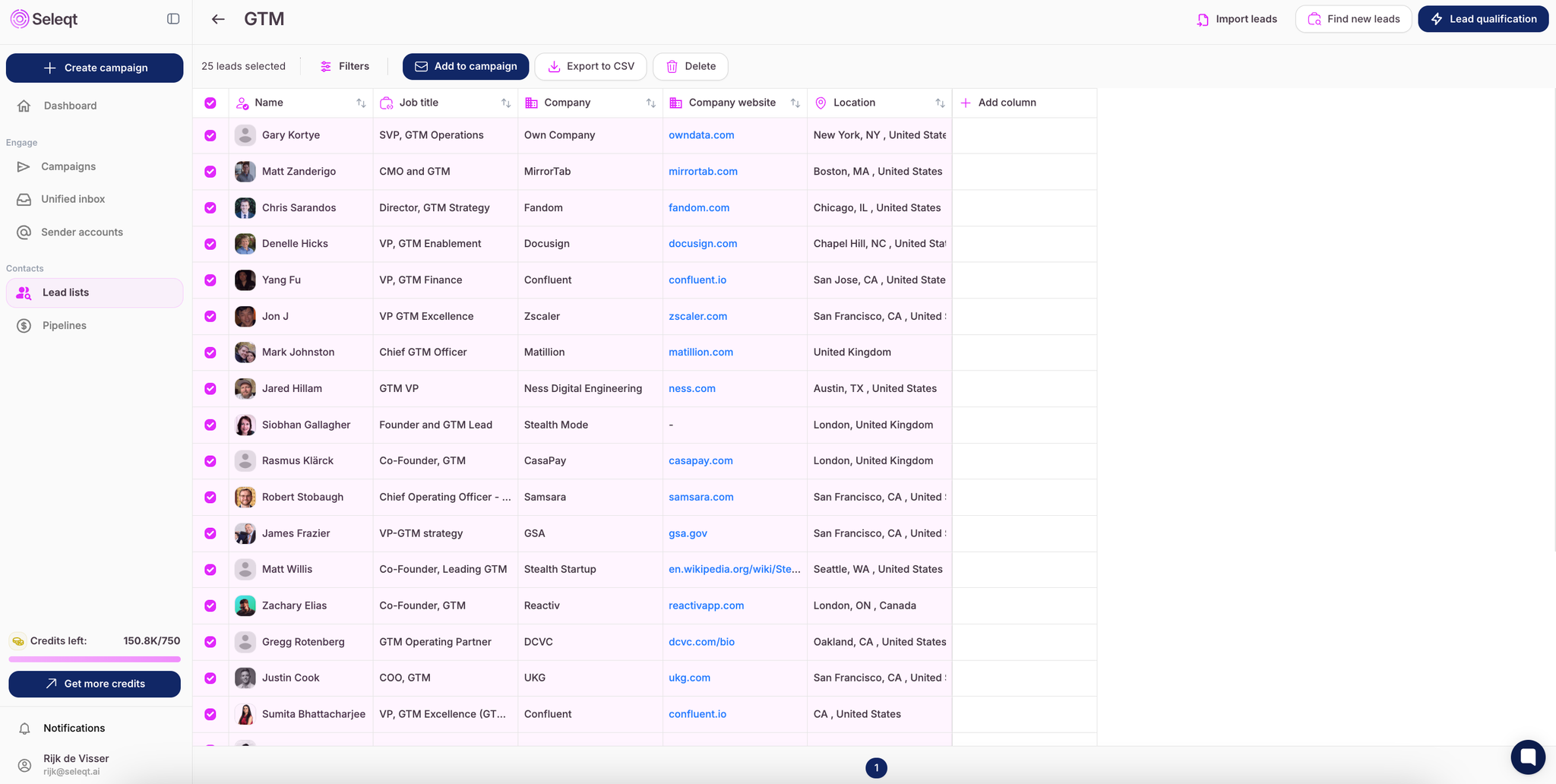
You will be given three options:
Add to campaign
Click the “Add to campaign” button to choose the campaign you want to add candidates to. If you haven’t created a campaign yet, you’ll need to create one first.
If you’ve already created a campaign, you’ll see the option to select it.
Export to CSV
You can save the list of leads to a CSV file, so you can share it with team members.
Delete
You can delete the lead and it well be removed from the list.
