Hi there!
I understand you want to know how to create a campaign that convert? Don't worry, with Seleqt it is a piece of cake!
Let us guide you through the process step-by-step.
Click on the "Create campaign" button
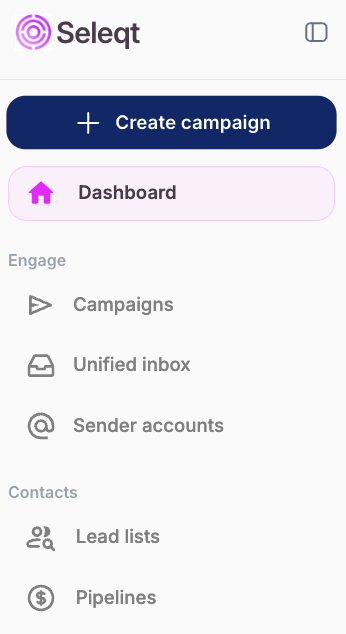
Your campaign is created.
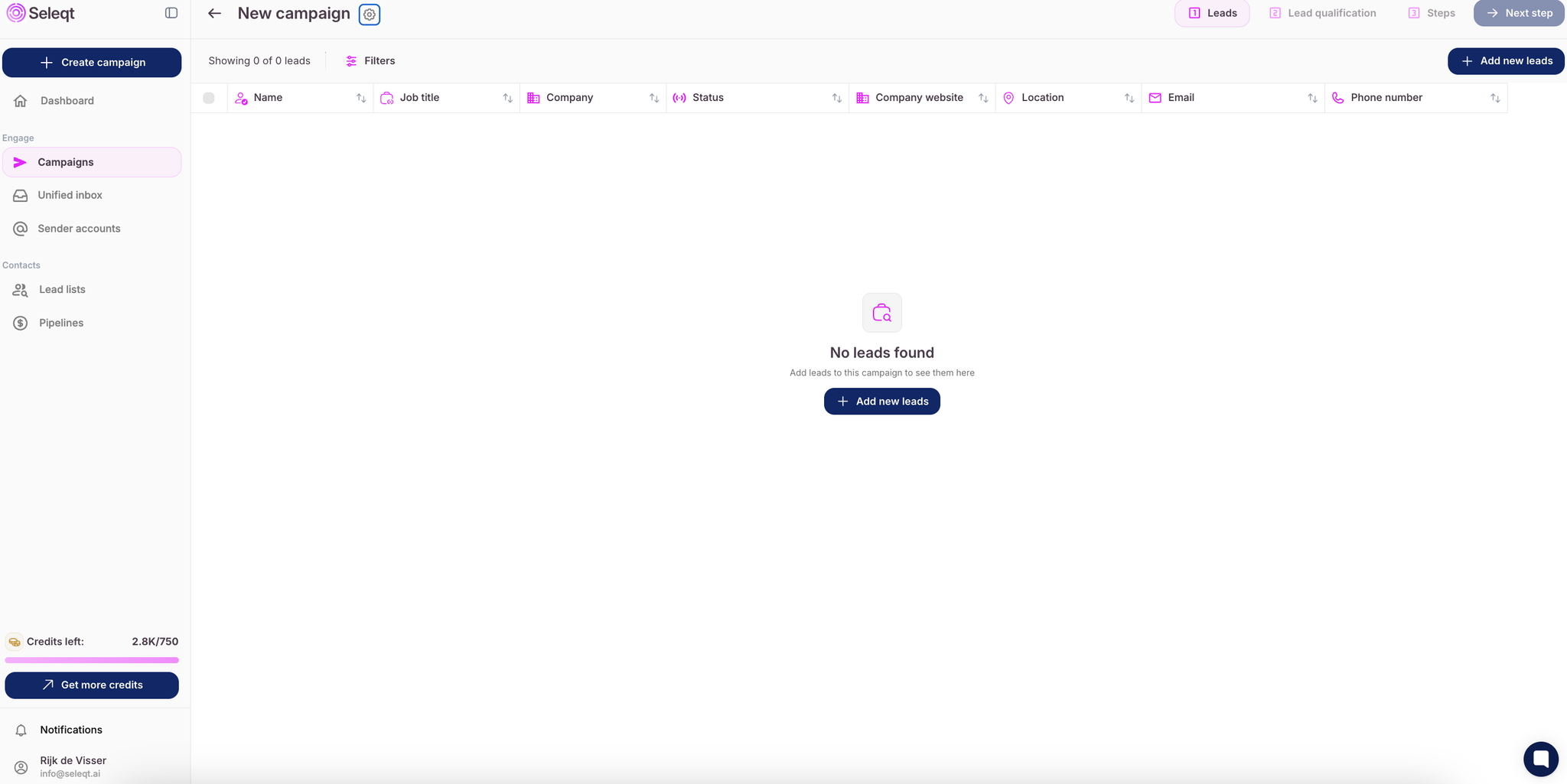
The campaign consists of three elements: Leads, Lead qualification and Steps

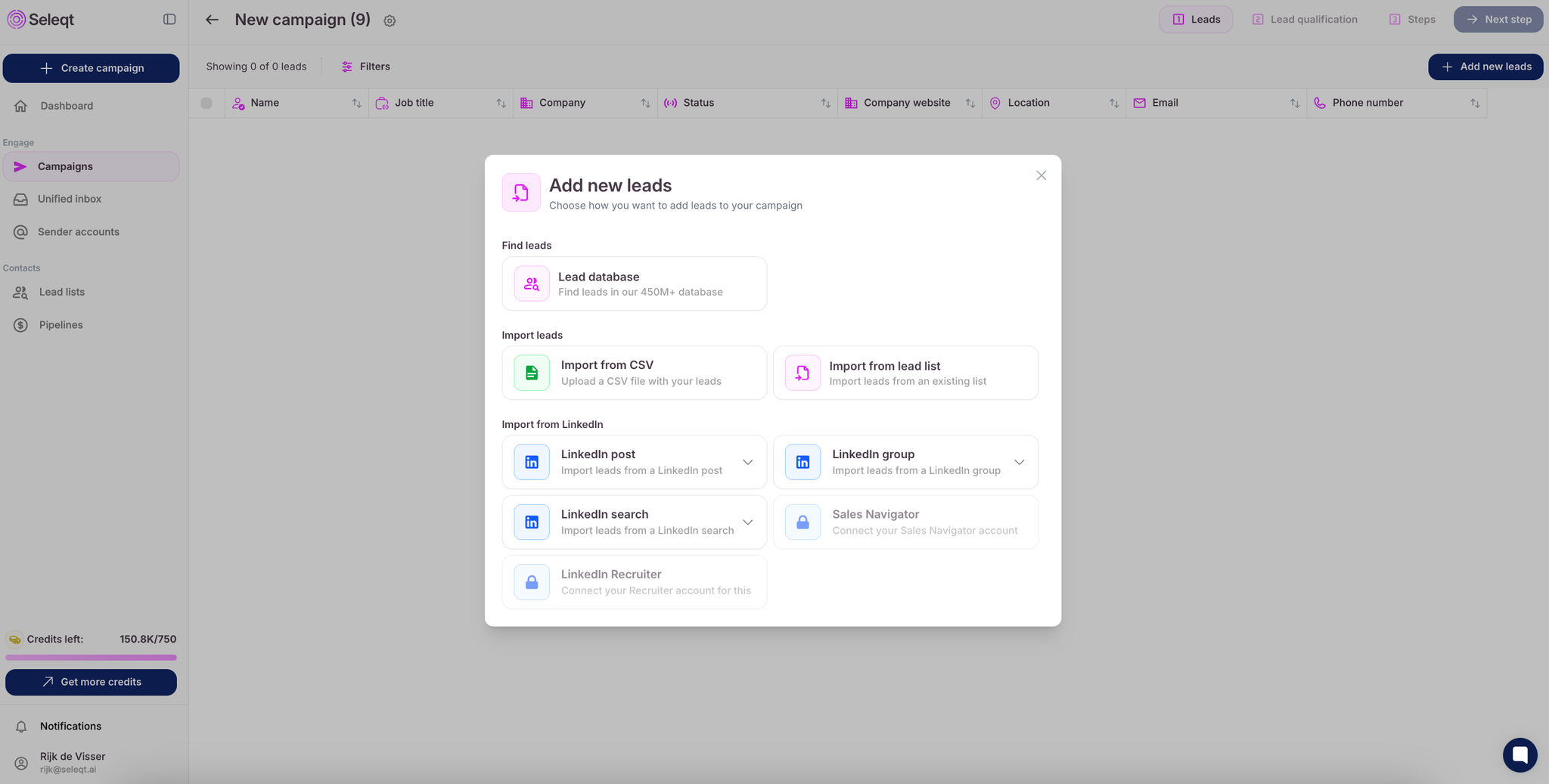
Leads: Add leads to your campaign from our database, through a CSV upload, from an existing lead list, or using multiple LinkedIn import options.
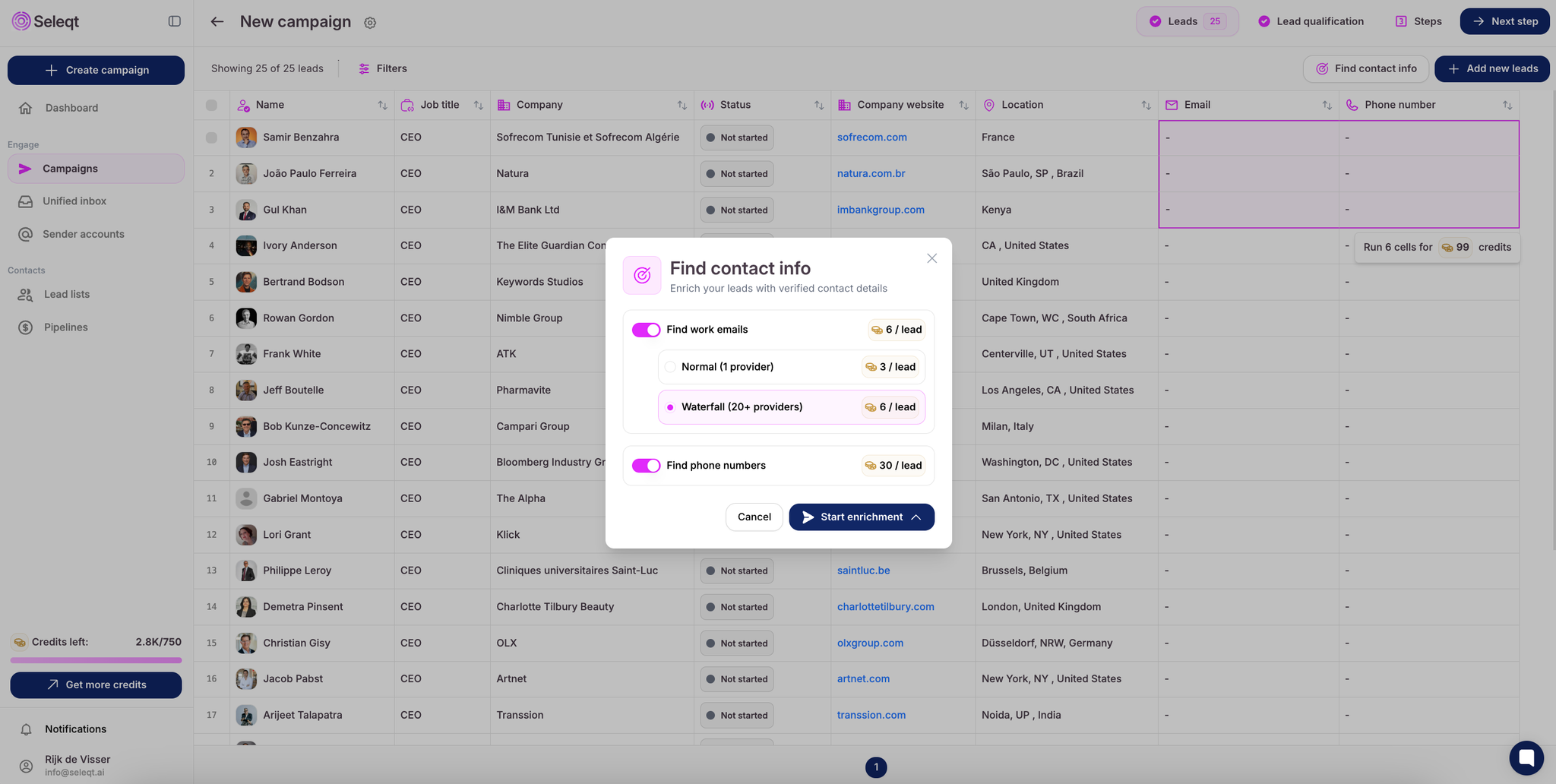
Once you’ve added leads to your campaign, you can get their email addresses and phone numbers using the “Find contact info” button or by dragging the cells you want to enrich.
Lead qualification: Enrich your leads based on information on google, news, their website, job boards and their tech stack. This information can be used in your messaging.
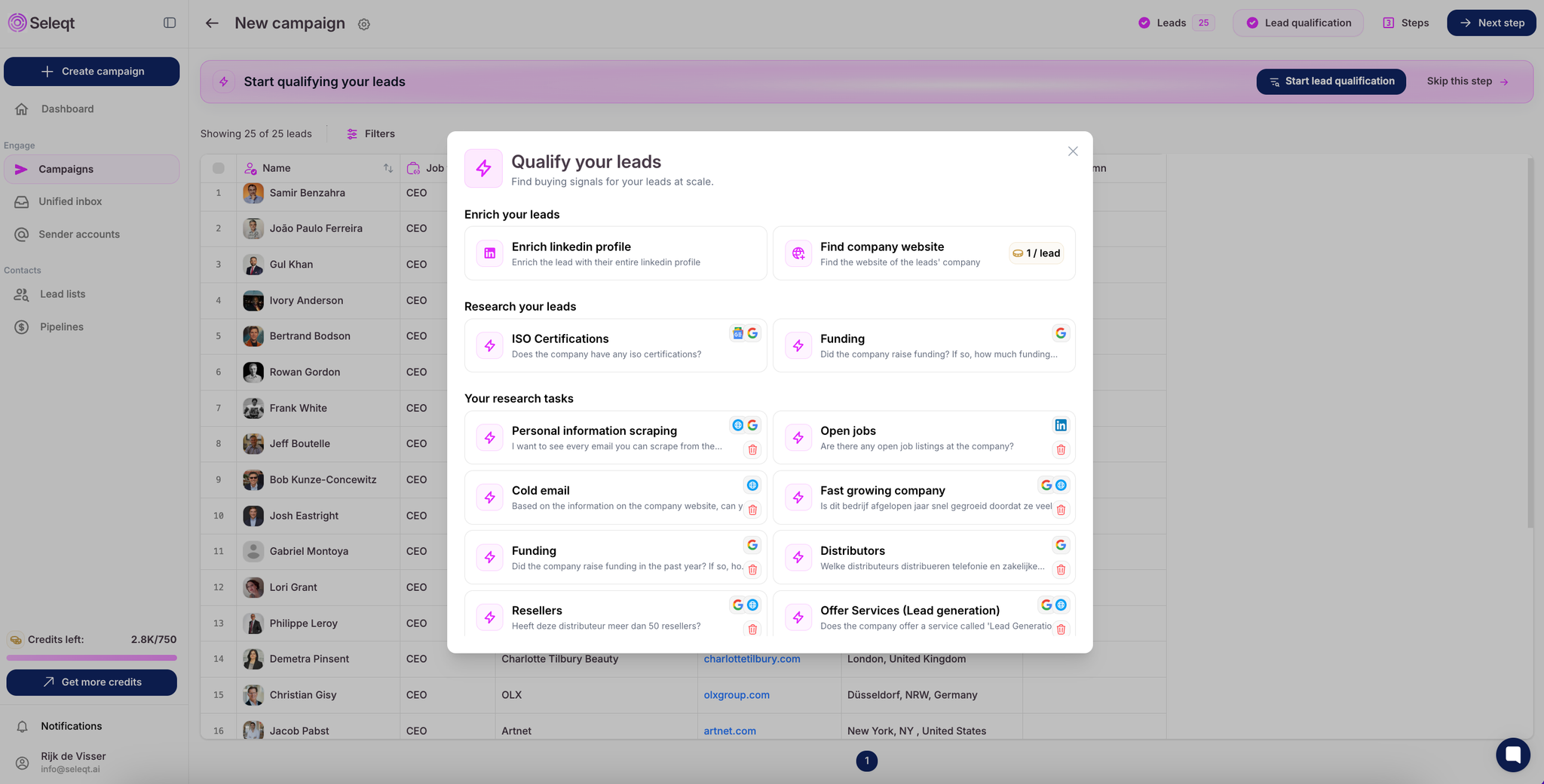
If you don't want to use our Lead qualification function for your campaign you can skip this step.
Steps: Decide if you want to reach out via Email, LinkedIn or combined. Click on the “+” button to add steps.
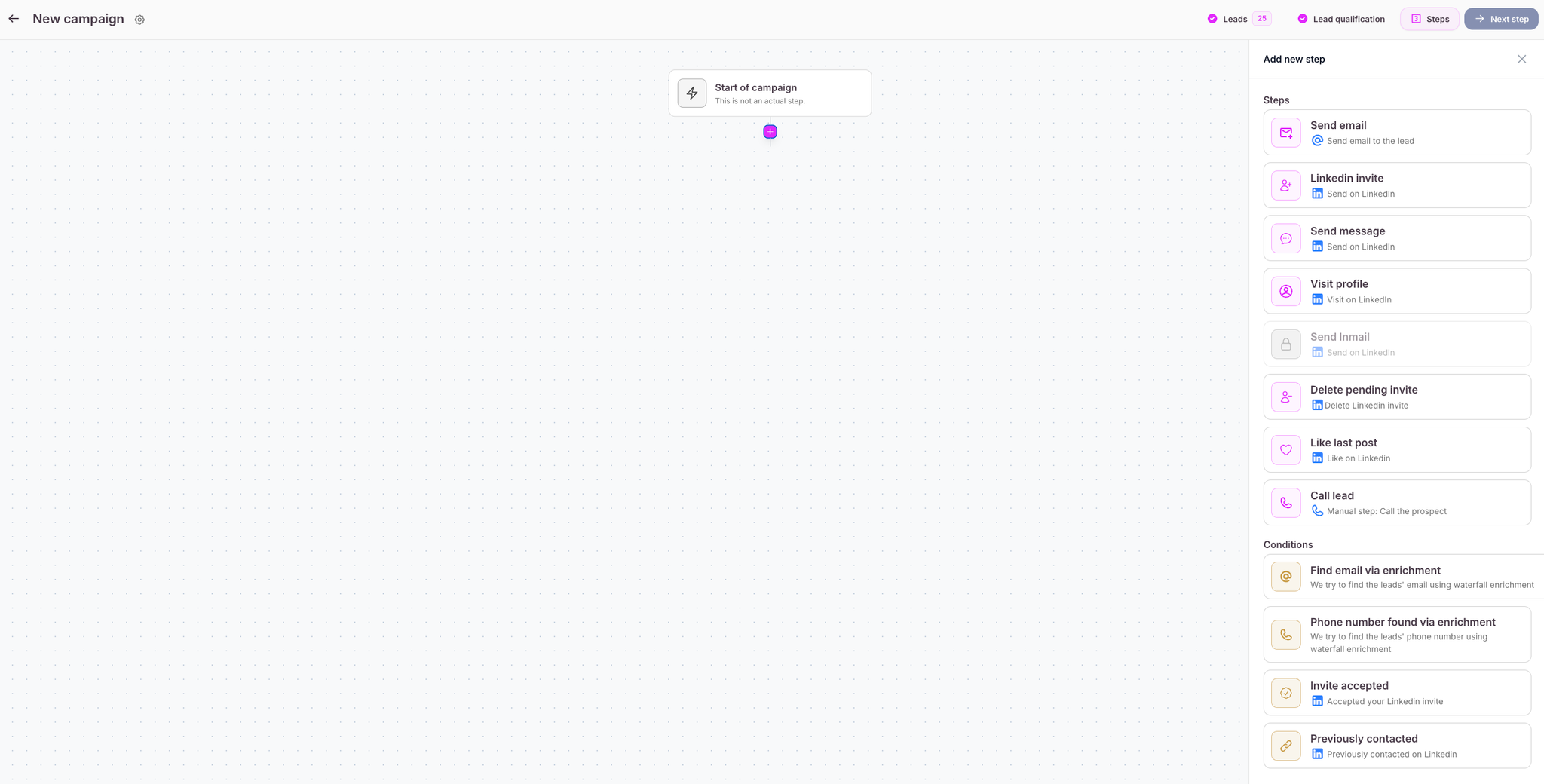
Looking to control the pace of your campaign?
Simply adjust the "delay" between each step of your campaign.
Click on the step you want to set up a delay for. Click on the "Immediately" and set up the preferred delay.
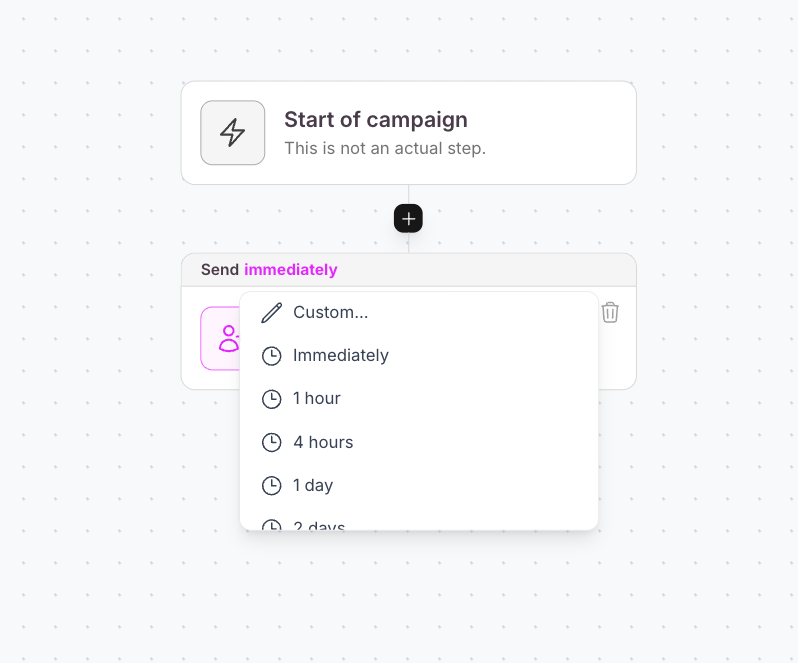
Example of a delay:
Your campaign is set to send emails or Linkedin messages daily, excluding weekends (Monday to Friday).
You’ve set a 1-day delay between Step 1 and Step 2.
If Step 1 is sent on Friday, the next message won’t go out on Saturday or Sunday.
Instead, Step 2 will be sent on Monday, the next available day.
Conditions are triggers for next steps based on the behaviour, actions and information of your lead. By using conditions, you can ensure your outreach is more relevant and effective. These conditions are available in all our plans.
You can add conditions the same way as you add steps in a campaign. Press the "+ button" and click on the desired condition.
Available conditions are:
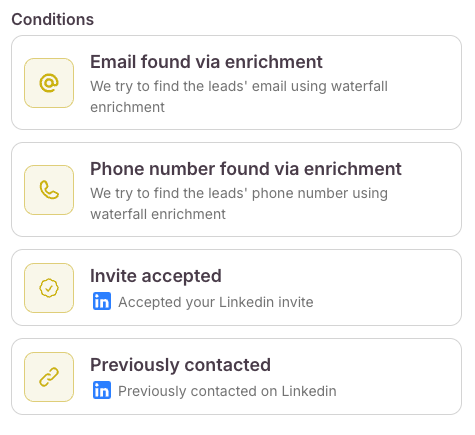
After selecting your desired condition, you can proceed with configuring your campaign sequence based on whether the condition is met or not met.
For example, if you start with the "LinkedIn previously contacted" condition, you’ll have two options:
Yes – You’ve already been in contact with the lead in the past. The next step could be to send a LinkedIn message directly.
No – Great! You’ve found a new lead to connect with. The next step could be to send a LinkedIn invite first, followed by a LinkedIn message.
You can add multiple conditions in a single campaign to make it more tailored. Let's followup on the previous example here above:
Let's say you had no previous contact with the lead, so the next step is sending a LinkedIn invite. You can add the "Invite accepted" condition which gives you two options:
If the lead accept your invite a different step is triggered, for example send a LinkedIn message
If the lead does not accept your invite a different step is triggered, you can add an action to delete pending invite and you can add a follow-up step like sending an email instead.
💡In this campaign you see how you can add multiple conditions in a single campaign.
If you need further assistance, don’t hesitate to contact our support via email at [email protected]
We advise you to combine the different channels by making a multichannel campaign. This way you reach out to the leads via two different channels which makes them faster to respond.
Example of a good multichannel campaign here below:
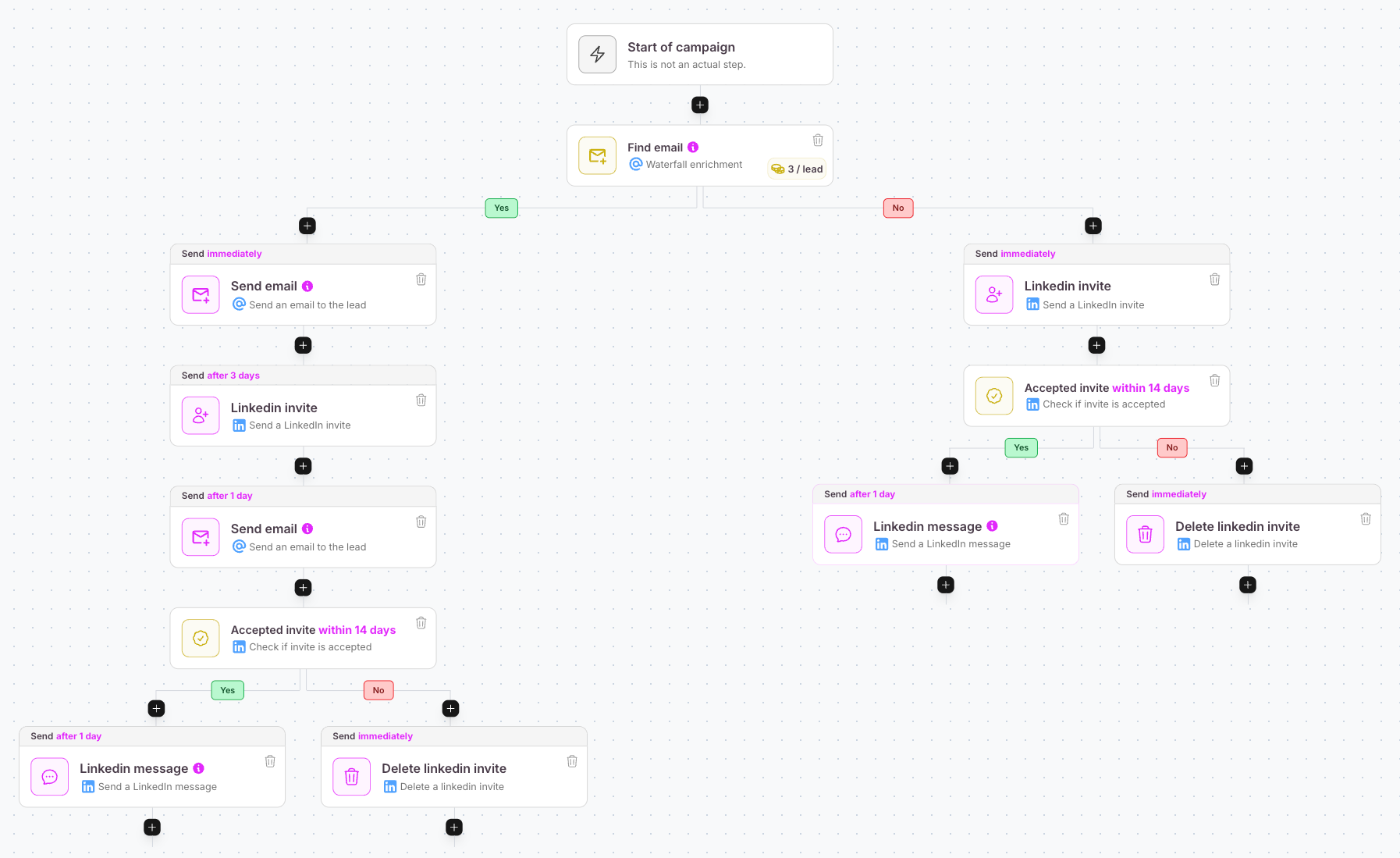
We start with a step to find the email address of each lead.
If we find one, the lead moves to the "Yes" flow.
In this flow:
We first send an email.
After 3 days, if there’s no response, we send a LinkedIn connection request.
If there’s still no reply, we send a follow-up email and mention that we sent an invite via LinkedIn.
We then monitor for 14 days. If the invite is accepted within this period, a LinkedIn message is sent 1 day after acceptance.
If the invite isn’t accepted within 14 days, it’s automatically withdrawn.
If we don’t find an email address, it would be a missed opportunity not to reach out, so we switch to LinkedIn instead.
In this flow:
You can send a connection request directly
And again, we monitor for 14 days.
If they accept, we send a LinkedIn message 1 day later.
If the invite isn’t accepted within 14 days, it’s automatically withdrawn.
This is just one example of how you can harness the power of multichannel campaigns to boost your outreach performance.
Click on "Launch campaign". Select for which account you want to activate the campaign and press the “Launch” button.
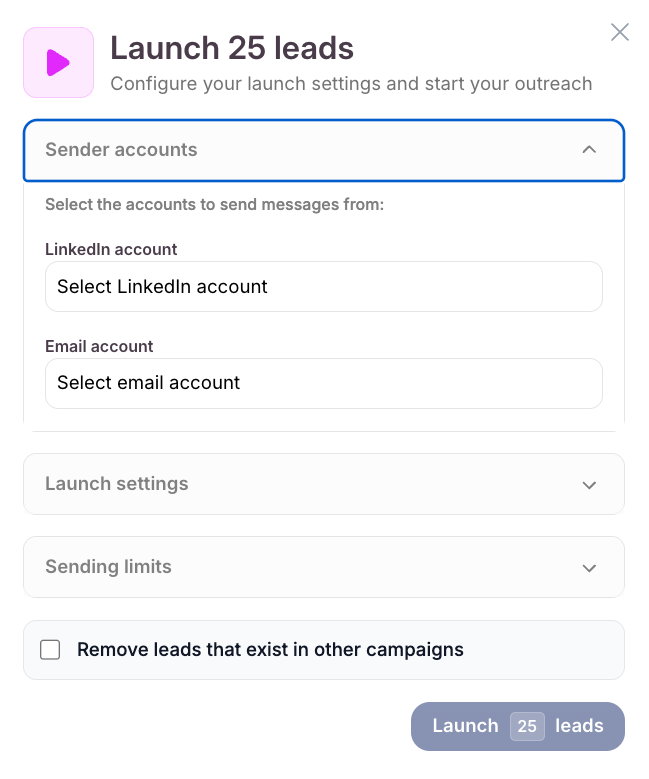
Well done! You have successfully created and activated a campaign!
Leads: Overview of the leads that are in the campaign will be changed. Right now you are able to see the leads information, including status, next action and errors.
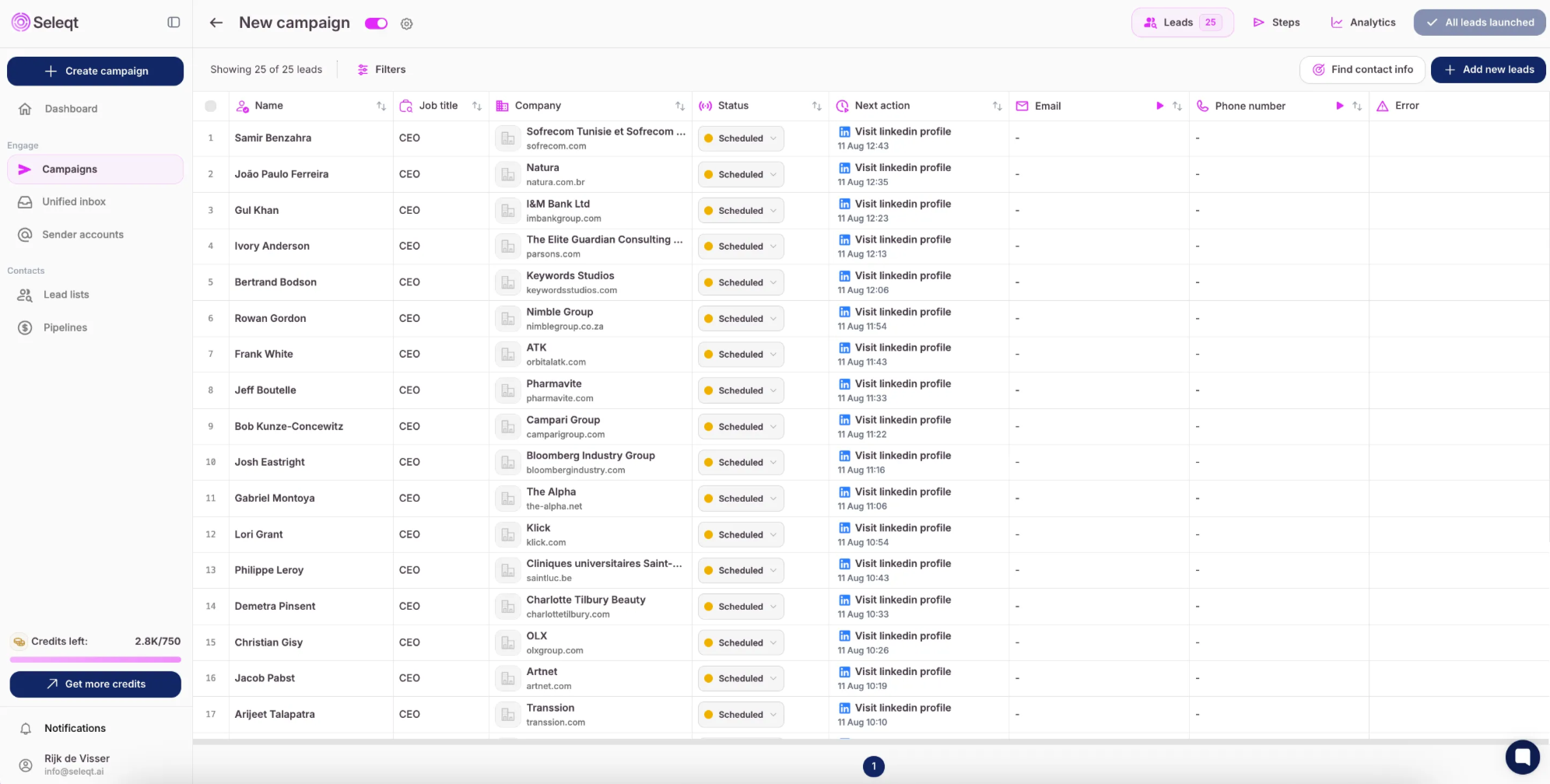
From this overview it is possible to pause the campaign via the toggle icon on the top of the screen.

Analytics: After the campaign is launched you are able to see all the analytics and metrics of the campaign in one overview.

When you add new leads to your active campaign it is possible to run the Lead qualification for the new added leads and the menu will consists of four sections.

Which means you can keep your campaign activated and add new leads to it every time you want!
Understanding leads statuses is crucial for staying organized and ensuring smooth campaigns.
This guide explains each lead status in the 'leads' section helping you track progress.
Leads statuses provide a real-time snapshot of your lead's engagement within a campaign.
The statuses we have in Seleqt:
🔘 Not started
The "Not started" status indicates that the lead are added to the campaign, but the campaign itself is not launch yet.
🟡 Scheduled
The "Scheduled" status indicates that the campaign is launched and active. Also, the next action for the leads are scheduled. You can see the timeline in which the next action will take place.
🟣 Replied
The "Replied" status indicates that the lead has replied on your previous action. For example, you send LinkedIn messages or emails to leads and they replied to you. The "Replied" status will appear behind the name of the lead. We make sure you never miss a reply, ever again.
❌ Failed
The "Failed" status means that the step you wanted to execute is failed. This can have several reasons. If this happens, have a look at our Troubleshooting Articles in this Help Center. Or feel free to contact support. We are happy to help you!
🟢 Active
The "Active" status indicates that the campaign for a specific lead is still running and active. The next actions will be executed soon.
⏸ Paused
The "Paused" status indicates that the campaign for a specific lead is paused for a moment. There were some steps executed but now the campaign is paused for some reason. When the campaign will resume there are next actions left that will be executed.
✅ Completed
The "Completed" status indicates that the campaign for a specific lead has come to an end. This happens when the lead has finished all the steps.
