Hello there!
Lets start with 6 tips for effective Emails and LinkedIn messages:
Always personalize your message
Keep it concise and to the point
Focus on the prospect's potential benefit
Avoid generic, copy-paste language
Provide a clear, low-pressure call to action
Always make it about THEM, not you. Listen more than you talk.
You probably have started creating your campaign and added steps, like 'Send LinkedIn message', 'Send Inmail' or 'Send email'.
In Seleqt, you can add custom variables to your messages to make it more personal. Read further to see how!
Navigate to your campaigns.
Click on the desired message step where you want to add variables.
There appears a side bar on the right of your screen. Here you see the text box where you can write your message. Click on the blue “Personalize” icon to see the drop-down menu of the custom variables you can add to your message.
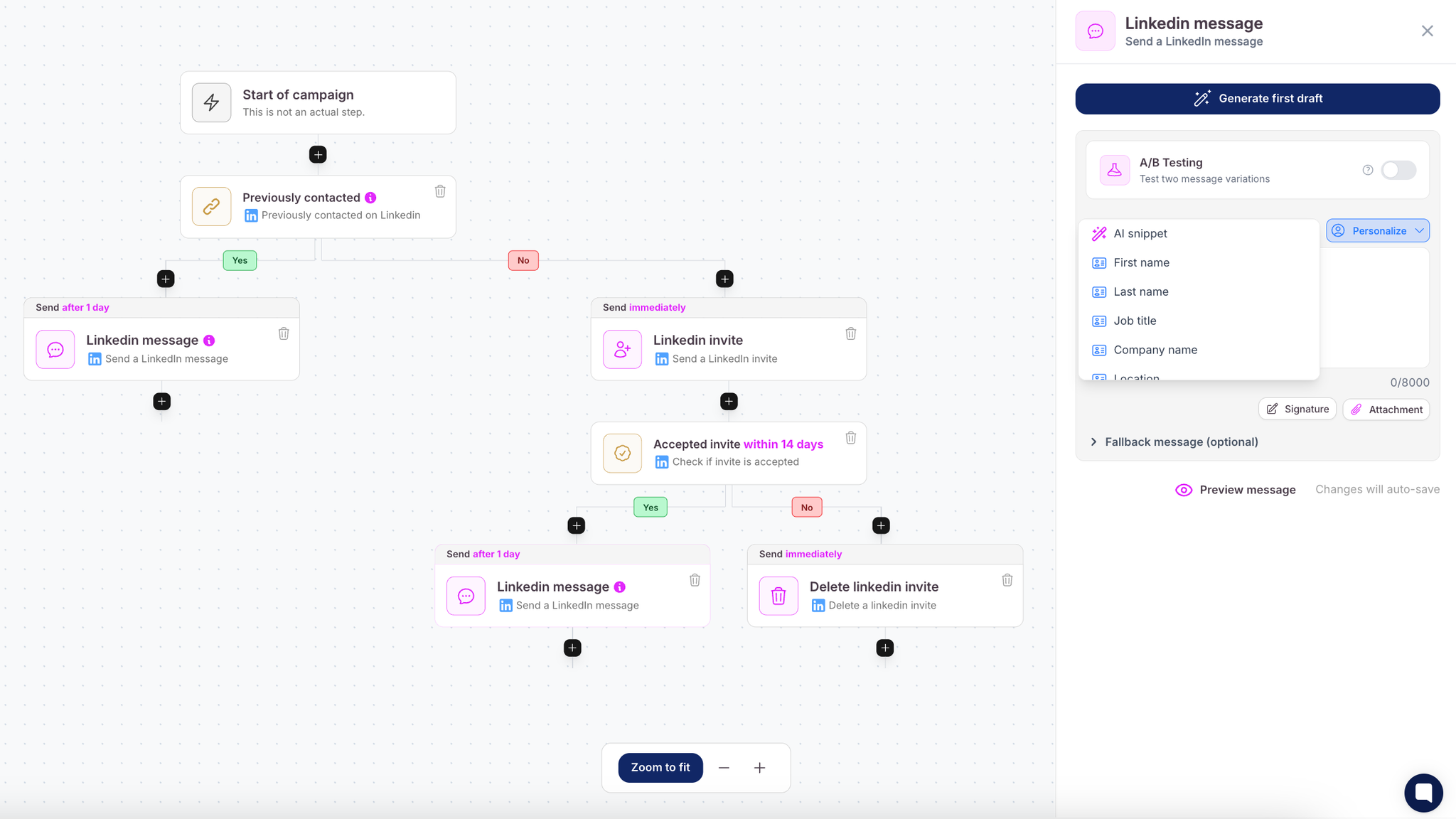
In our platform we have the following variables available:
First name
Last name
Job title
Company name
Location
AI Snippets are pre-generated text suggestions powered by artificial intelligence. They help you:
Write faster and more effectively
Respond to common inquiries
Structure your message based on specific keywords or prompts
By integrating AI Snippets into your outreach flow, you can personalize your outreach at scale
Go to the "Campaigns" section where you create your outreach messages.
Choose the step where you want to insert an AI Snippet (e.g., "Send email" or "LinkedIn message").
Click the purple “AI Snippet” button to open a list of suggestions and templates.
You can now choose from two options:
Browse default snippets: Pick one that fits your message.
Create a new snippet: Describe what you want the AI to generate.
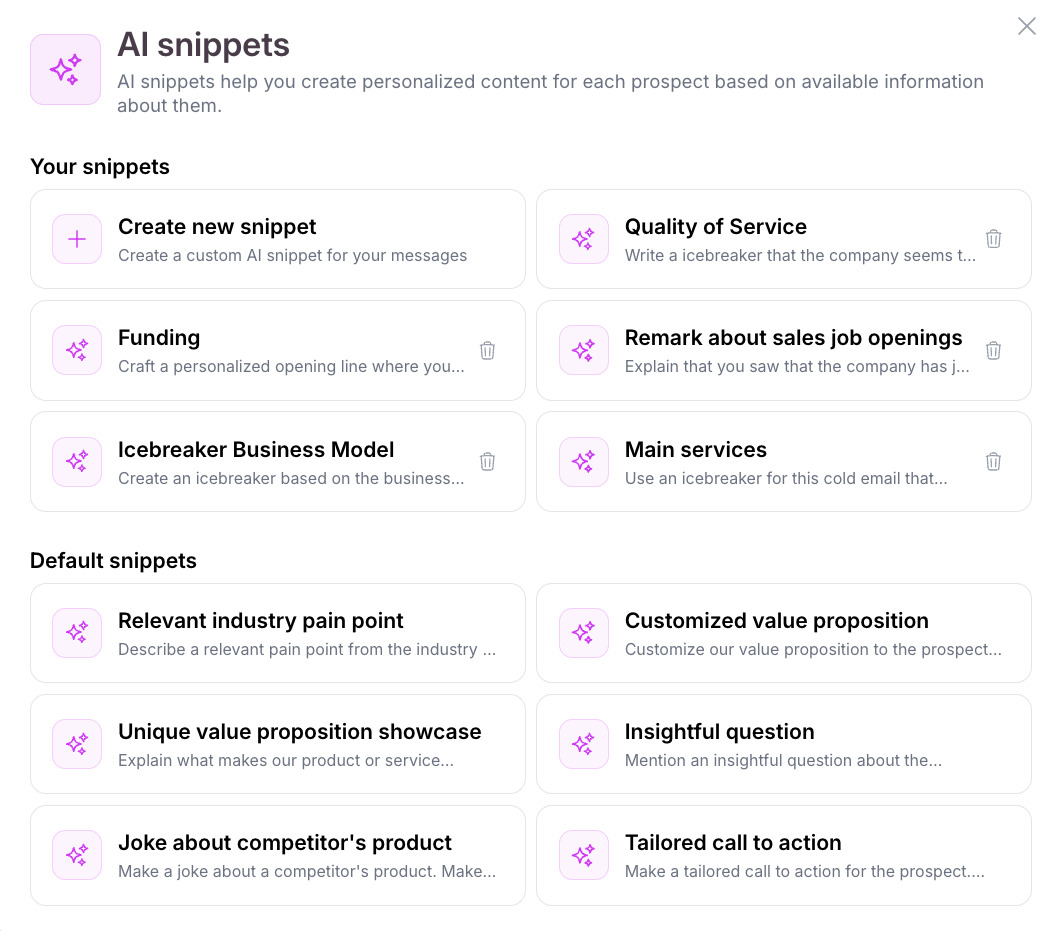
Once selected, you can customize the snippet:
Instructions: Tell the AI what kind of content you need
Amount of sentences: Choose how long the snippet should be
Data sources: Select which data sources the AI should use to generate the snippet
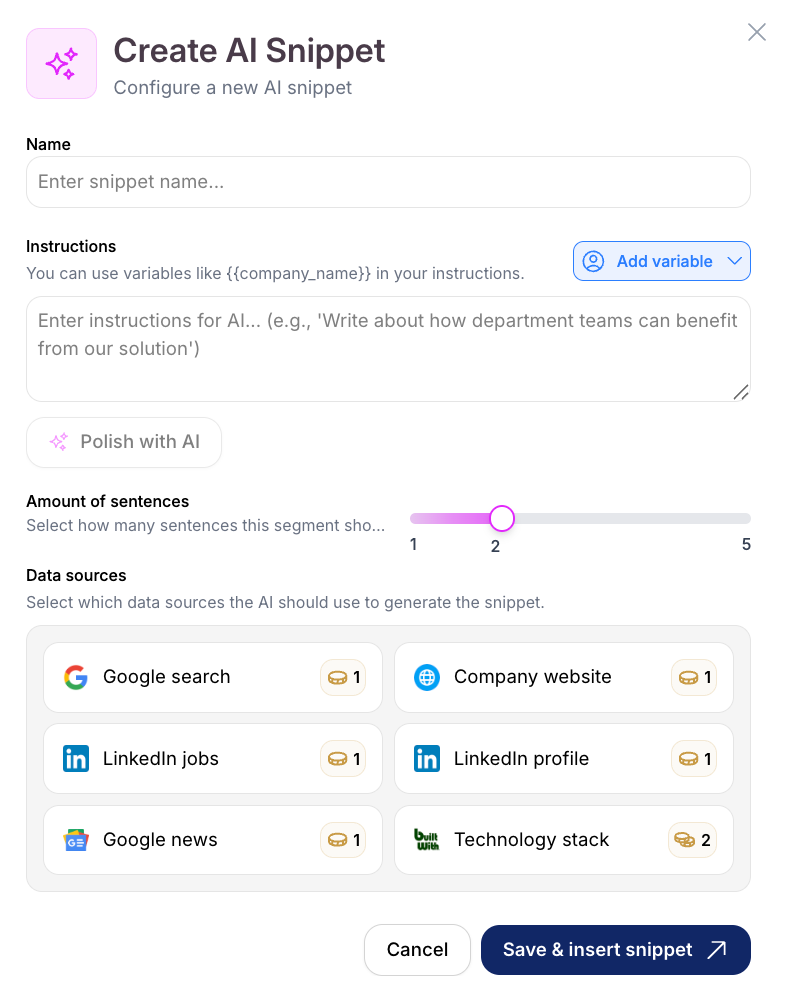
After customizing, click “Save & insert snippet” to add the AI-generated snippet directly into your message. You can further edit the message or leave it as is.
💡 Tip: Use the “Preview Message” button to see what your full message will look like before sending.
You can also use information found through our AI Research feature, such as details from a lead’s LinkedIn profile, company website, job page, or news mentions to enhance your AI snippets and make your messages even more relevant.
Here are some common types of AI Snippets and how the AI generates them:
Relevant Industry Pain Point
A pain point in the prospect's industry and department that your product can solve. Short and to the point.
Customized Value Proposition
A tailored version of your value proposition based on the lead’s profile or company.
Insightful Question
A thoughtful question about the prospect’s company or industry, tied to your solution.
Recent Company Activity A comment on something notable about the company’s recent developments or news.
Joke About Competitor’s Product
A lighthearted joke comparing a competitor’s product to yours, relevant and tasteful.
Tailored Call to Action
A specific meeting request, suggesting a time and date (within 2 workdays), phrased as a question.
Use AI Snippets to speed up your workflow while keeping your outreach relevant.
Combine with AI Research for the most personalized approach.
Always preview your message to ensure everything looks right.
If you have questions or need help creating the perfect AI Snippet, feel free to contact our support team via the customer support widget in the bottom-right corner of the software.
