Now the fun part begins, you can start searching new clients to grow your business! 😁
You can simply click “Create campaign" and you are able to import and find leads in this campaign:
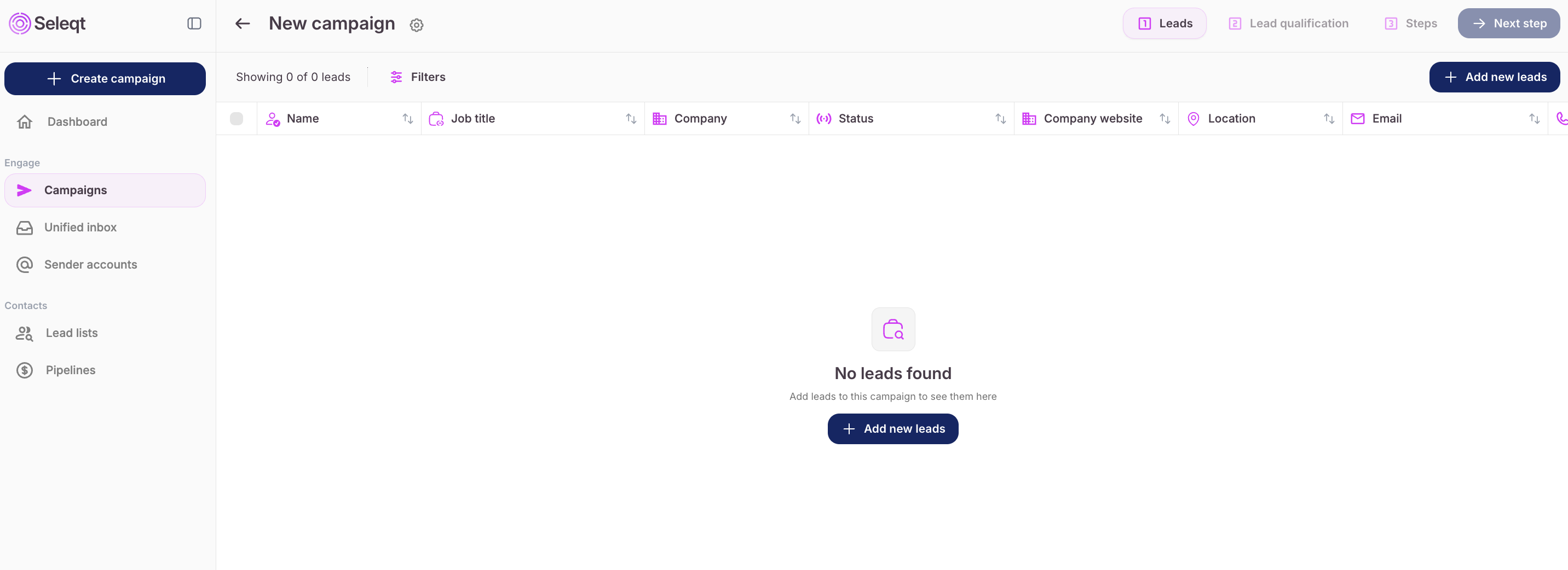
First, click on the “Add new leads” button
Now you see the following options to find or import leads to your campaign:

You can import leads via the following imports:
First, create a CSV file using Excel or Google Sheets with columns like First Name, Last Name, Email, Phone, and Company. Save the file as .csv
Next, go to the ‘Import from CSV’ section.
Upload your CSV file from your computer.
The software will prompt you to match each column in your file to the correct field in Seleqt (for example, match "Email" to "Email Address"). Make sure everything lines up correctly.
Once you’ve reviewed the mapping, start the import. The leads will be added to your campaign.
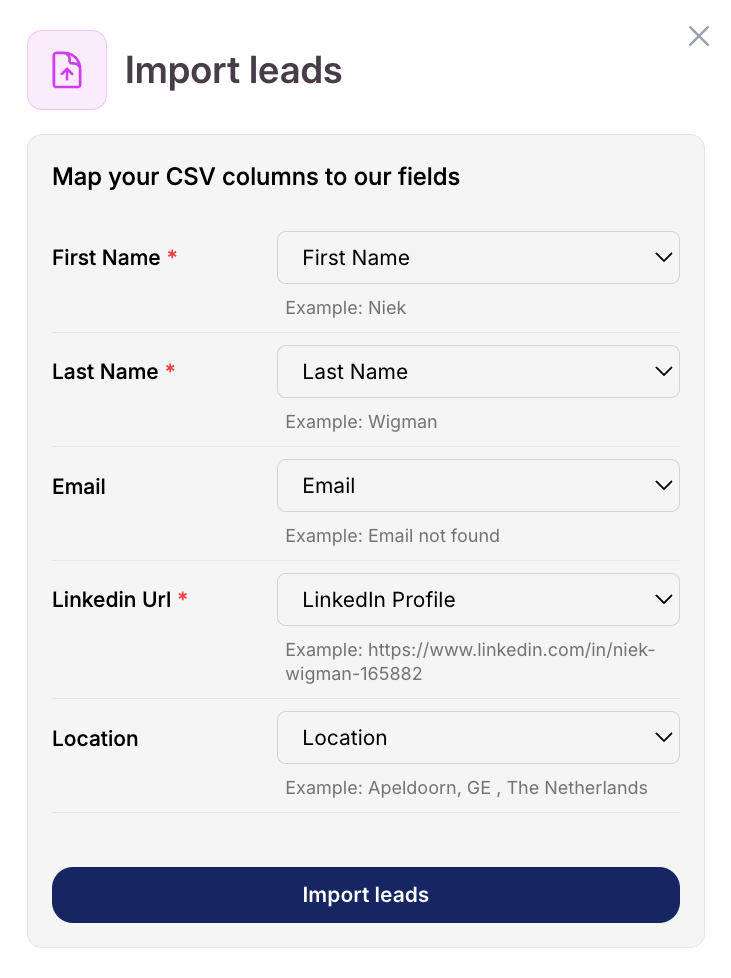
That’s it! Just make sure your data is clean and clearly labeled before you begin.
To import leads from a LinkedIn post, copy the URL of the post directly from LinkedIn.
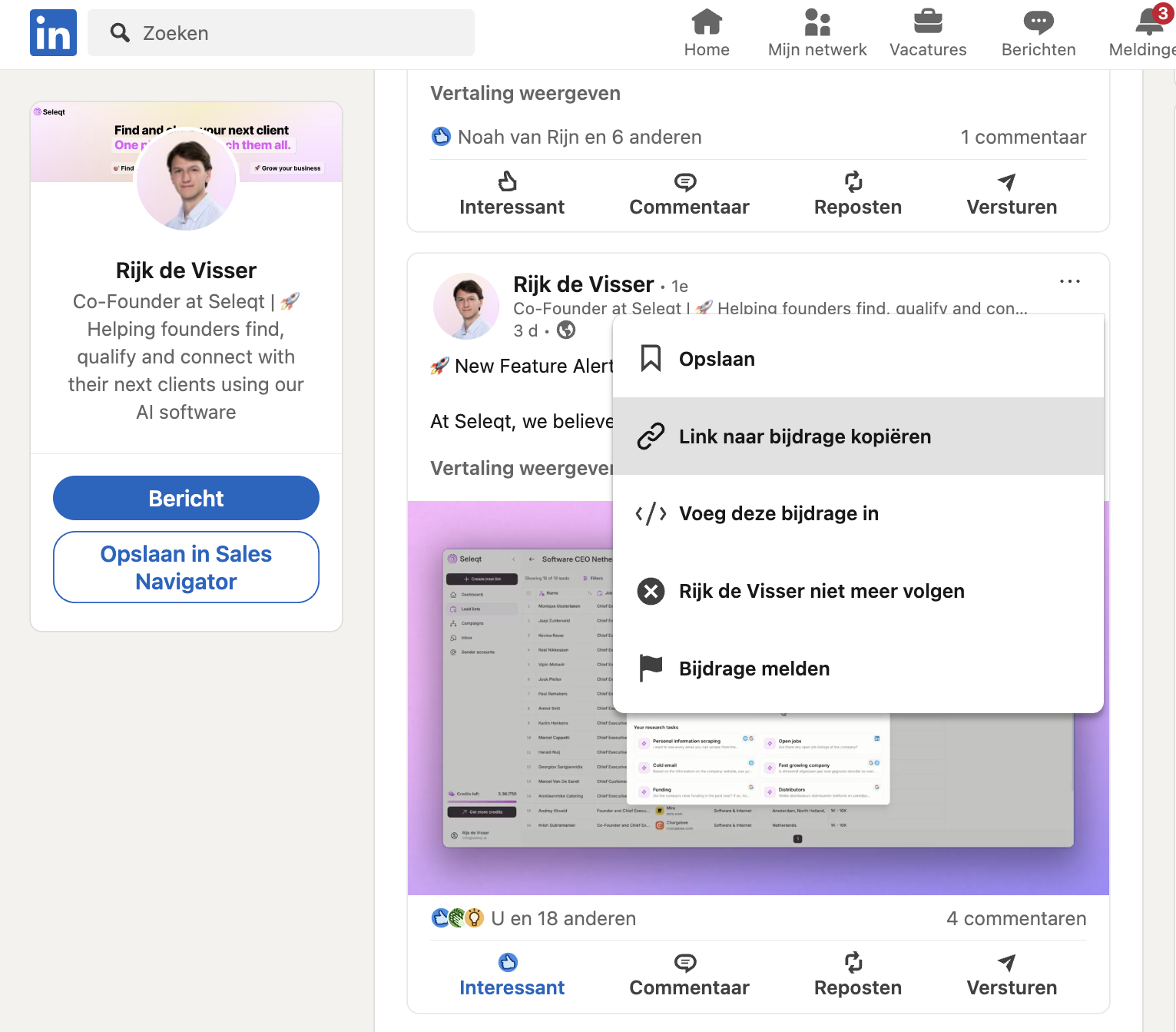
In Seleqt, go to the ‘Import from LinkedIn post’ section and paste the URL. Adjust the number of leads you would like to import from the post.
Seleqt will scrape the post for commenters and extract their profile information.
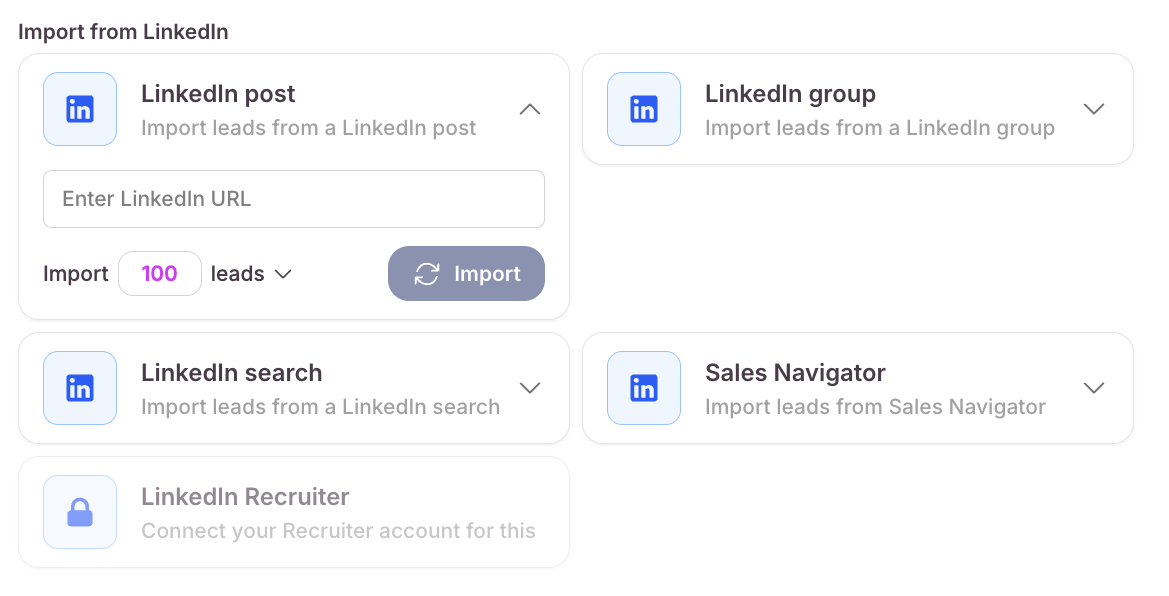
First, open the LinkedIn group page and copy the group’s URL.
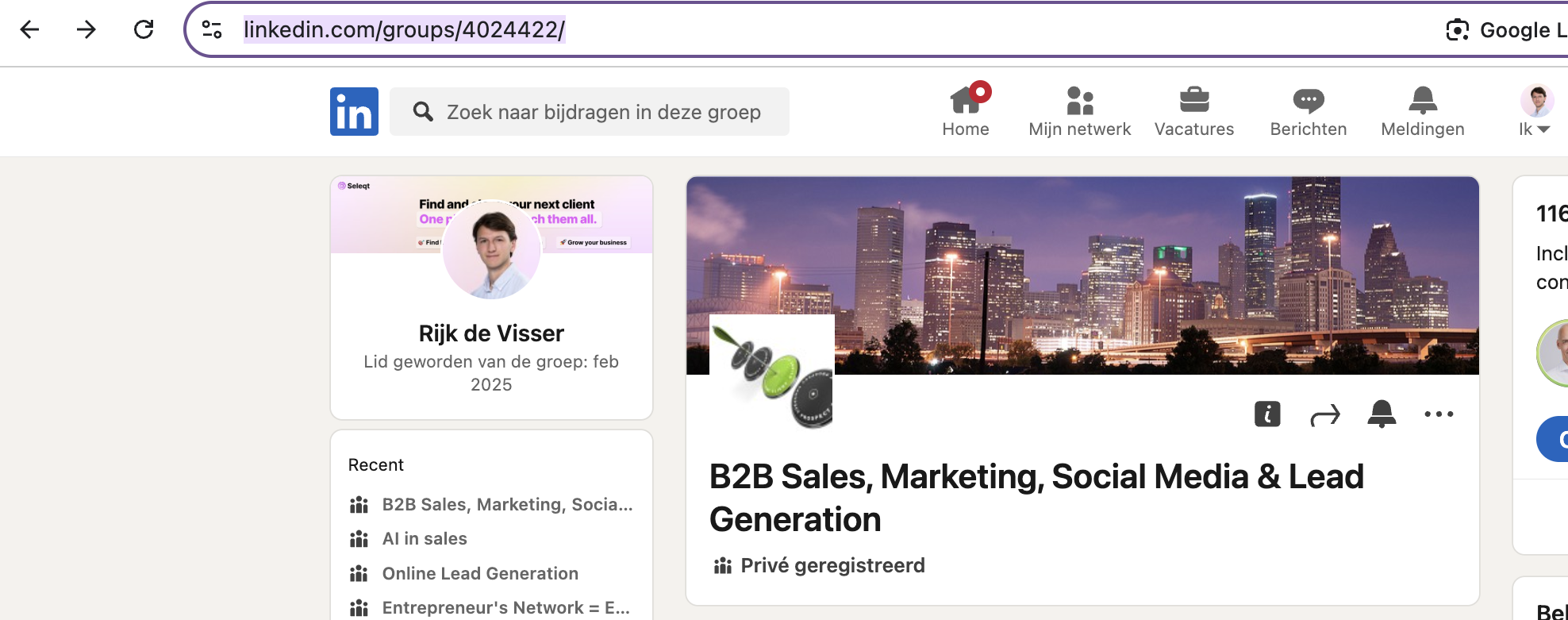
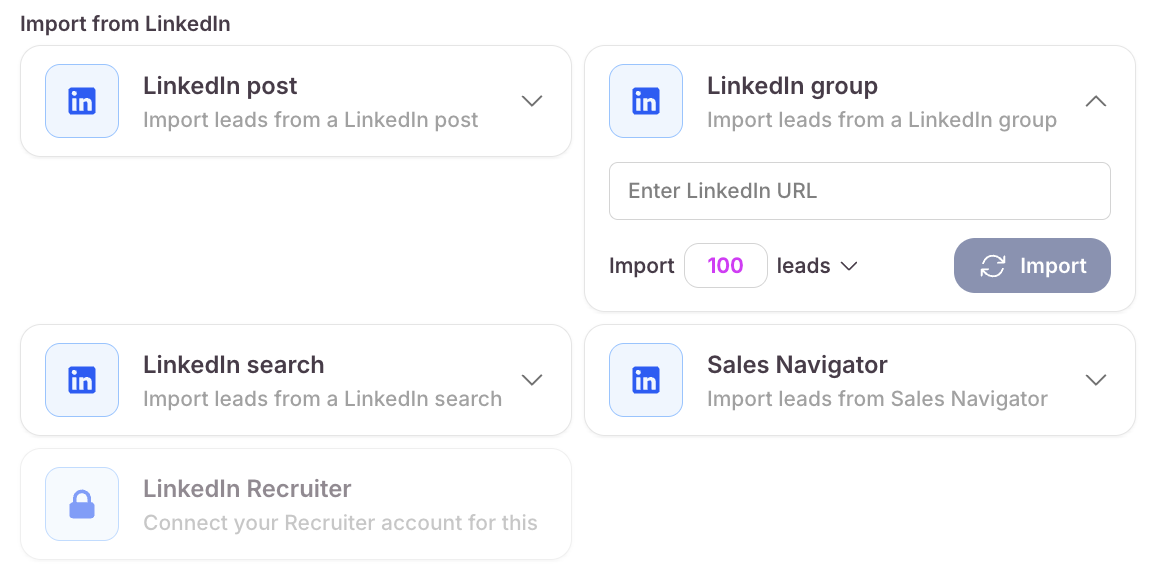
In Seleqt, find the LinkedIn Group import option and paste the URL. Adjust the number of leads you would like to import from the group. Seleqt will gather member profiles and import them to your campaign.
Perform a search on LinkedIn via the standard search bar and use the filters (e.g., job title, location, company), then copy the URL from the search results page.
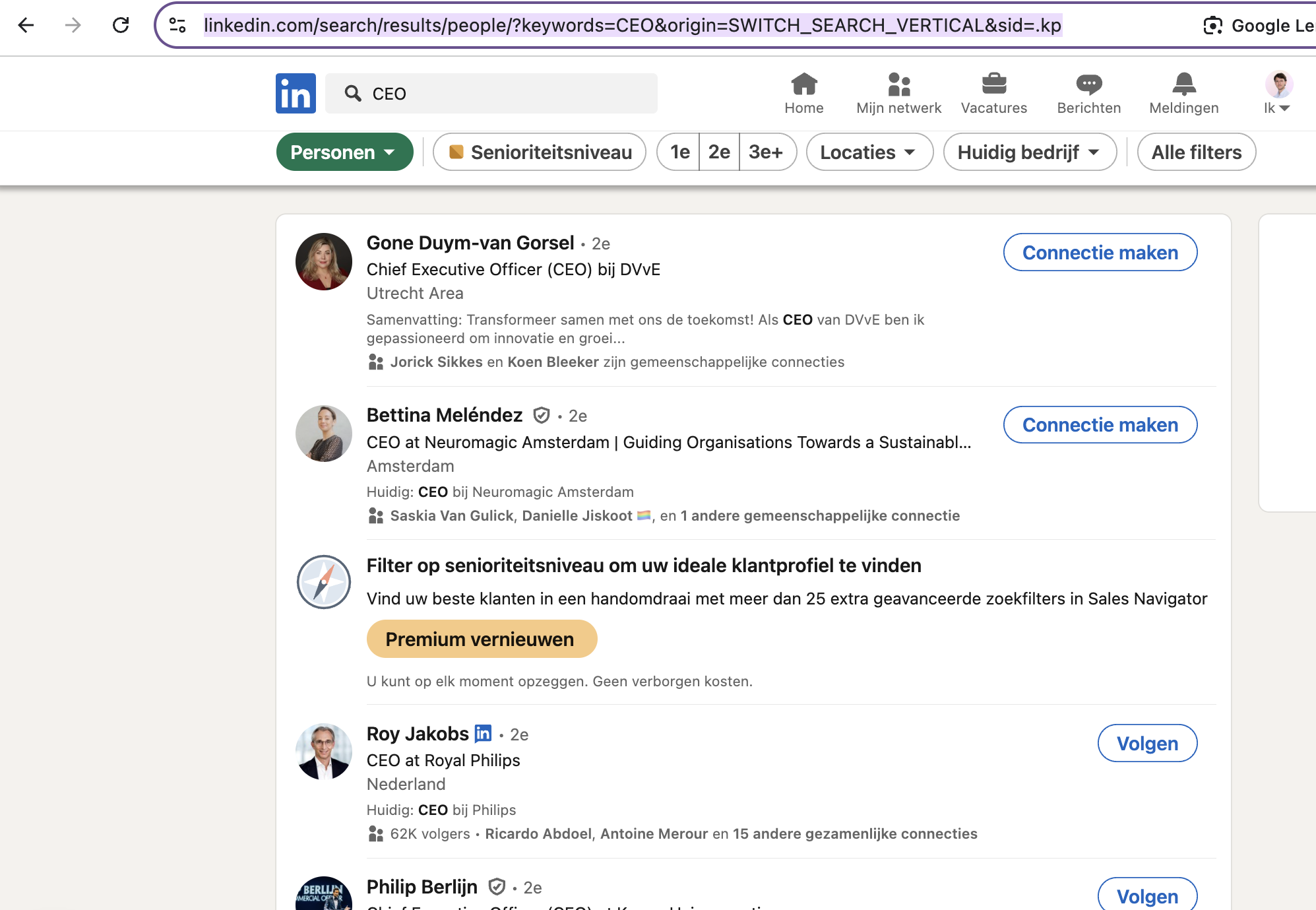
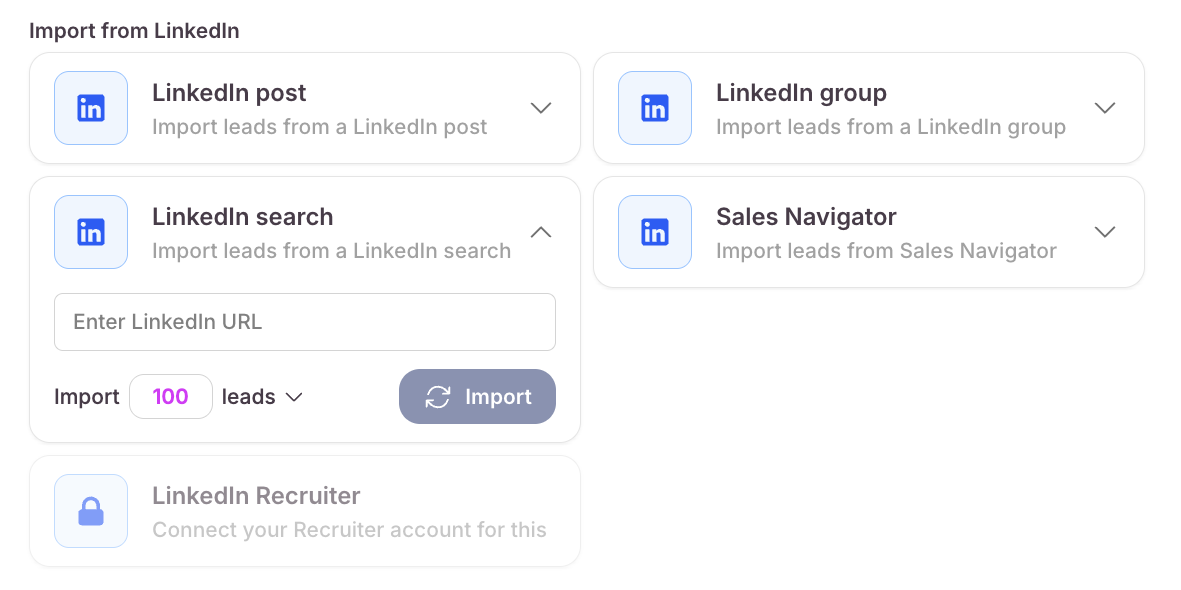
Paste this URL link into Seleqt under the Import from LinkedIn Search option. Seleqt will pull profiles from that search result for you to import. Adjust the number of leads you would like to import from the search and confirm.
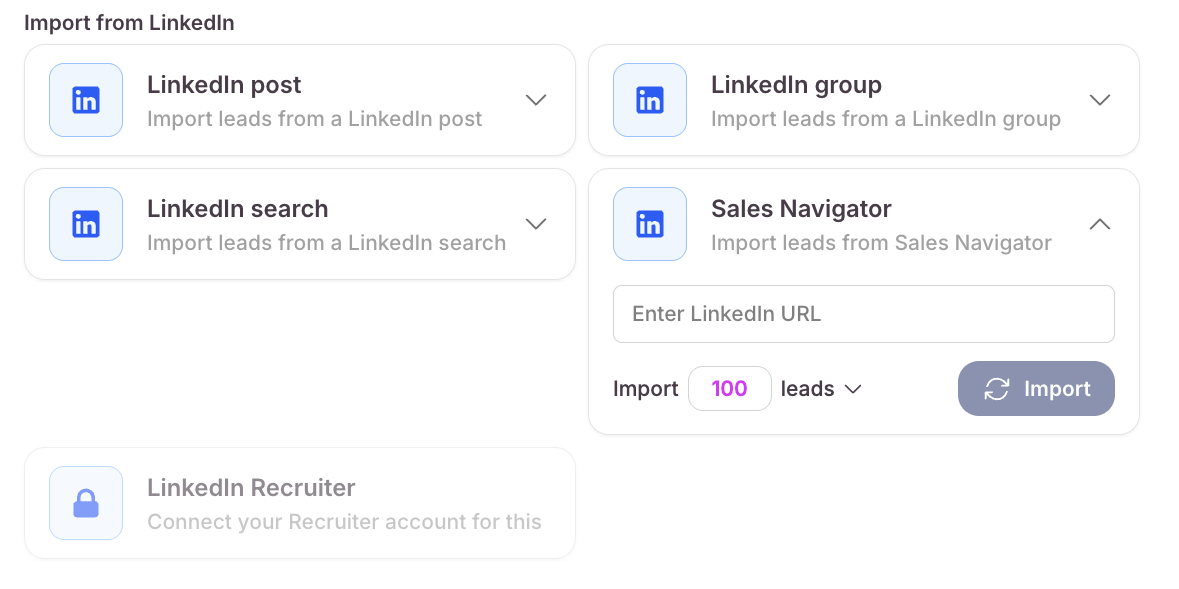
In Sales Navigator, run your search using the available filters. It is important to know that we can only import leads and NO accounts (companies). Saved searches don’t work. Once the results are loaded, copy the full URL from your browser’s address bar.
The URL have to start with www.linkedin.com/sales/search/people
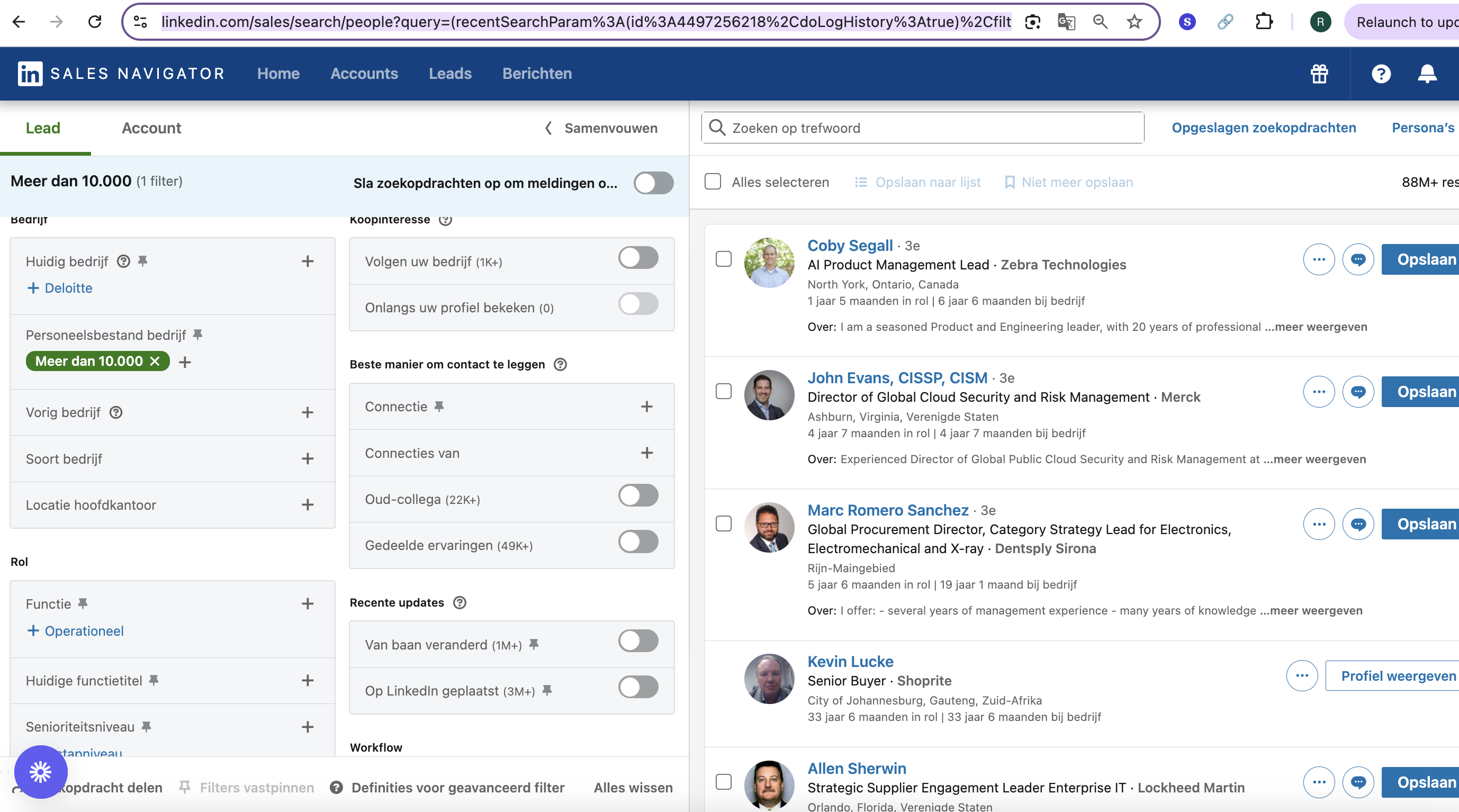
Paste the URL into Seleqt under the Sales Navigator import section. Adjust the number of leads you would like to import from the search. Seleqt will gather lead data from the search results and import it in your campaign.
You can also find leads within our own lead database.
Fill in all the filters based on your preference and press on "Apply filters". We will show you a preview of the first 100 leads based on your filters.
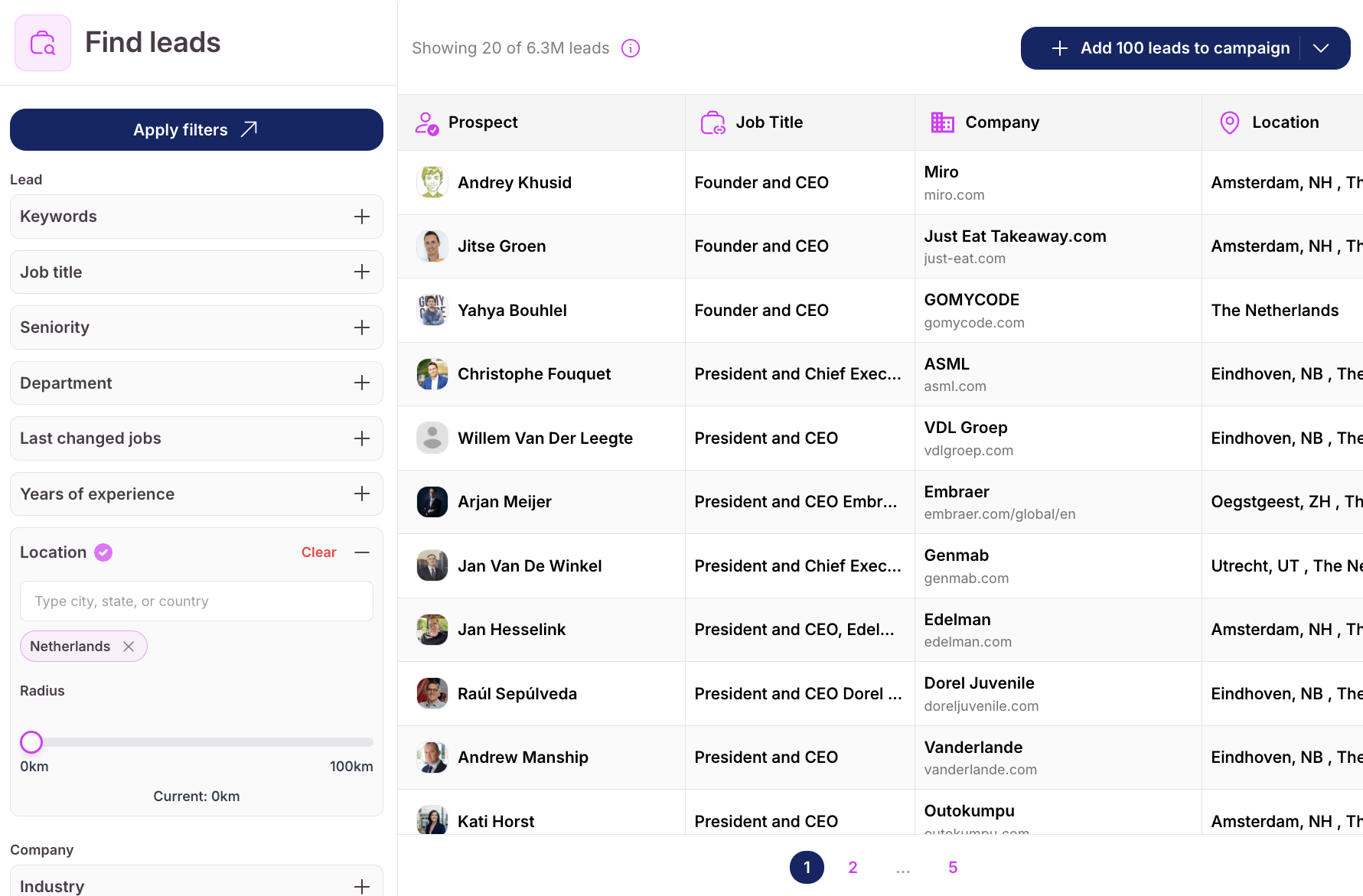
You can scroll through the found prospects and add them to your campaign.
Easy as that! Your campaign is filled with ideal prospects.