1. Open the Filters Menu Navigate to your leads list and click on the Filters button located at the top of the page. This will open a pop-up window where you can define your search criteria.
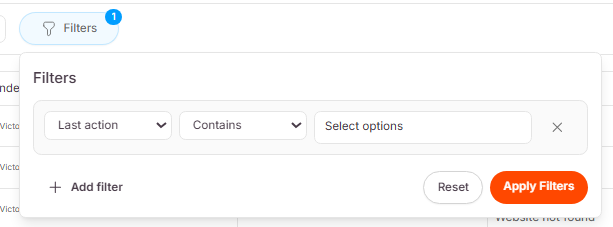
2. Define Your Filter You can filter your data by almost any column in your list.
Select a Column: Click the first dropdown (which defaults to "Name") and select the data point you want to look at. For example, select Last action.
Set the Condition: Leave the middle dropdown as Contains.
Choose the Value: Click the third box to select your specific criteria. For example, select LinkedIn message.
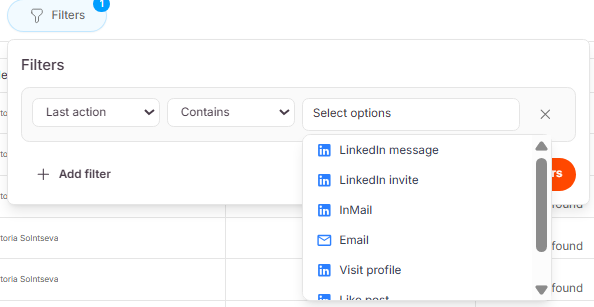
3. Apply Your Filter Once your criteria are set, click the orange Apply Filters button. Your list will instantly update to show only the leads that match your rule (e.g., leads who recently received a LinkedIn message).
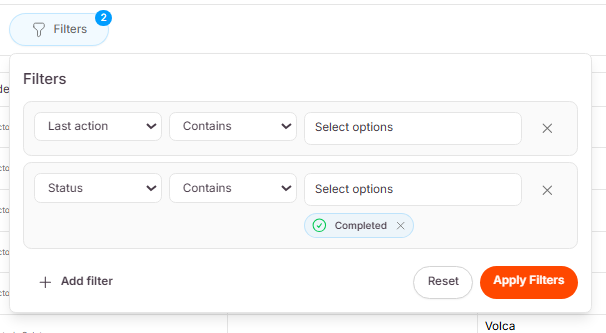
4. Stack Multiple Filters (Optional) Want to get even more specific? You can layer multiple filters on top of each other!
Click + Add filter inside the pop-up menu.
Set your second condition. For example, you might choose Status > Contains > Completed.
Click Apply Filters again.
And that's it! 📊 You can mix and match any combination of filters to pull up the exact segments of data you need. If a search turns up empty, it simply means no leads currently match all of those specific conditions. Happy analyzing!
