As your workspace grows and you create more outreach flows, finding a specific campaign can take a bit of scrolling. Seleqt’s campaign filter helps you instantly sort your list so you can find exactly what you need.
Here is a quick breakdown of how to use the campaign filter:
1. Open the Filters Menu
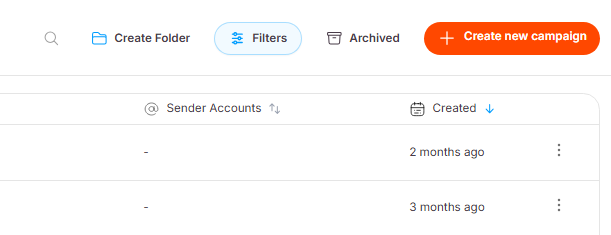
Start on your main Campaigns dashboard. Click the Filters button located in the top right corner of your screen:
2. Choose Your Criteria
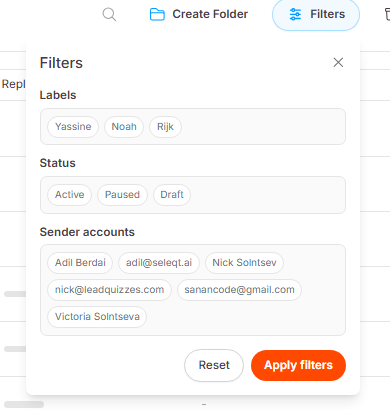
A menu will pop up giving you three different ways to sort your campaigns:
Labels: Filter by any custom tags you have created.
Status: Find campaigns that are Active, Paused, or still in Draft mode.
Sender accounts: Filter by the specific email or LinkedIn accounts connected to the campaign.
3. Apply Filters
You can select just one option or mix and match multiple conditions. Once you have chosen your criteria, click the orange Apply Filters button. Your list will instantly update!
And you're all set! 🎉 Using filters is a great way to keep your workspace organized and focus only on the campaigns that matter most to you right now.
💡 Pro Tip: If you want to see your full, unfiltered list of campaigns again, simply open the Filters menu and click the white Reset button to clear all of your selections.
