Connecting your CRM is one of the most important steps to keeping your sales process organized. By integrating GoHighLevel with Seleqt, you can easily push your prospect data and automatically track all your campaign activity (like emails, clicks, and replies) right inside your CRM.
Here is how to get the two platforms talking to each other in just a few minutes.
 Step 1: Start the Connection
In Seleqt, navigate to Settings in the bottom left corner.
Click on the Integrations tab.
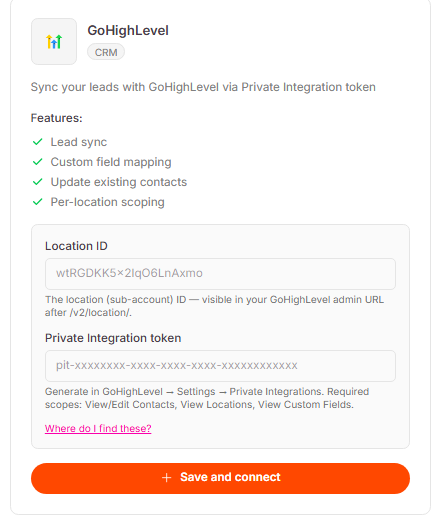
Find the GoHighLevel box and click the orange Connect button.
You will see that you need two pieces of information: a Location ID and a Private Integration Token.
 Step 2: Get Your Location ID
Open a new tab and log in to your GoHighLevel account.
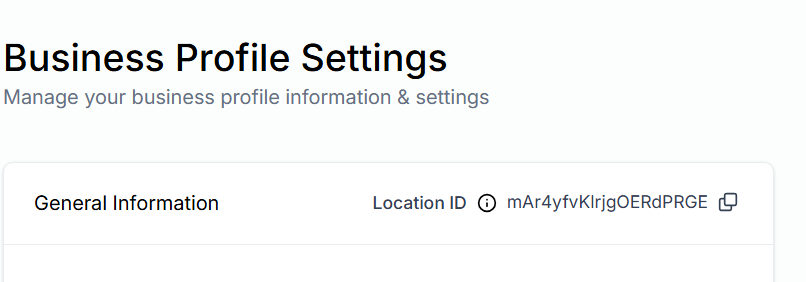
Click on Settings in the bottom left corner. This will open your Business Profile.
Right in the middle of the "General Information" box, you will see your Location ID.
Click the small copy icon next to it, then go back to Seleqt and paste it into the Location ID field.
 Step 3: Generate Your Private Token
Back in GoHighLevel's Settings menu, scroll down the left sidebar and click on Private Integrations.
Click the blue Create New Integration button.
Give your integration a name (e.g., "Seleqt Sync") and click the Scopes tab.
Wait, what are scopes? Scopes simply give Seleqt permission to read and write your data. You need to select specific ones for the integration to work. Quick Tip: Go back to your Seleqt tab and look at the red box—it lists exactly which scopes you need! You will need to search for and check the boxes for:
View/Edit Contacts
View Locations
View Custom Fields
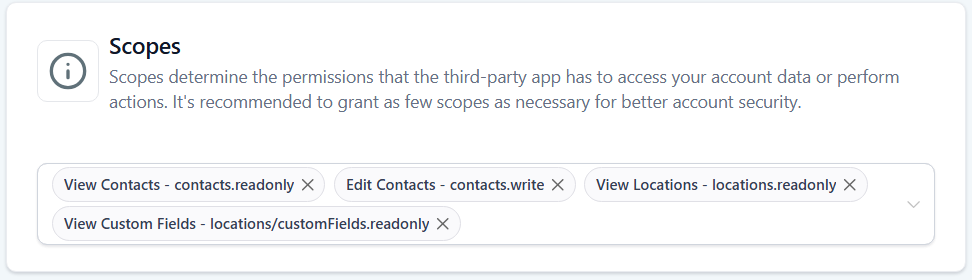
Once you have checked all the required boxes, click Create. GoHighLevel will generate a long password—this is your token. Copy it, paste it into Seleqt, and click Save and connect. Step 4: Map Your Fields
Now that you are connected, it is time to tell Seleqt where to put your data.
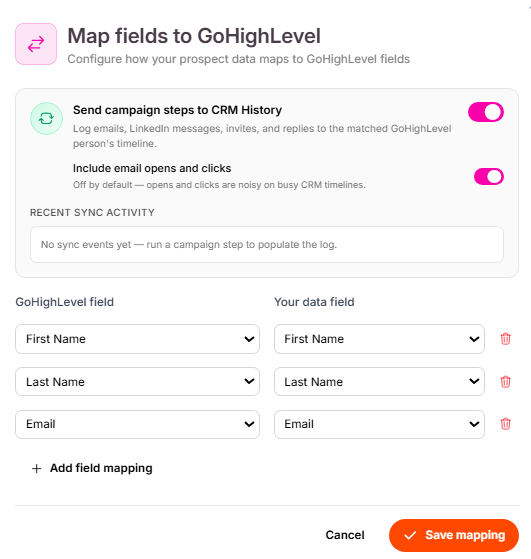
Sync Campaign History: We highly recommend turning on the toggle to Send campaign steps to CRM History. This will ensure that every email sent, link clicked, and message replied to will automatically log in GoHighLevel!
Map Your Data: Below the toggle, match your GoHighLevel fields on the left to your Seleqt fields on the right (e.g., match "First Name" to "First Name"). You can click + Add field mapping to sync extra data like Company Name or LinkedIn URLs.
When you are finished, click Save mapping.
 Step 5: Push Your Leads!
You are all set! Let's send some leads over to your CRM.
Open any of your active campaigns in Seleqt.
Go to your Leads tab and select the prospects you want to push.
Click the More actions dropdown at the top of the list.
Select Push to GoHighLevel.
You will see a green success message at the bottom of your screen. If you check your Contacts tab in GoHighLevel, you will see all your freshly synced leads ready to go!
You're all synced up!  With your CRM connected, you can focus on building relationships while Seleqt handles the data entry behind the scenes.
