Sometimes you need to show off your hard work to a stakeholder, but you don't want them accidentally pausing a campaign, moving a lead, or sending a message. The Viewer role is the perfect solution for this!It grants 100% read-only access. They can see all your brilliant data, but they cannot edit, delete, or send anything.
It grants 100% read-only access. They can see all your brilliant data, but they cannot edit, delete, or send anything.
Here is how to easily invite someone as a Viewer and a quick look at exactly what they will experience.
Adding a new member to your workspace only takes a few clicks.
Navigate to Settings in the bottom left corner of your dashboard.
Select the Team members tab.
Click the orange + Invite a member button in the top right corner.
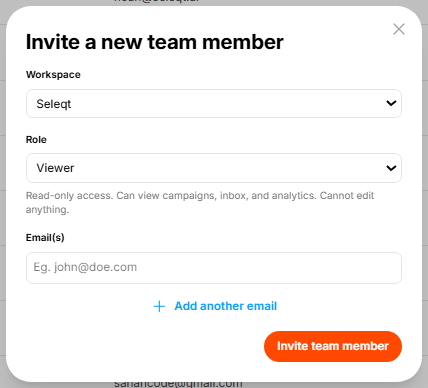
In the pop-up menu, select your Workspace.
Click the Role dropdown and select Viewer.
Type in the person's email address. (Need to add a whole team? Just click + Add another email to invite multiple people at once!)
Click the orange Invite team member button.
Once you hit send, the person you invited will receive a welcome email. Here is what they need to do:
Click the Accept invite button inside the email.
They will be taken to a secure page to enter their Full name and create a Password.
After clicking Create your account, they will be logged directly into the Seleqt dashboard!
To confirm their role, they will see a small, grey VIEWER badge right next to their name in the bottom left corner of the screen.

So, what does "read-only" actually look like in practice? Here is exactly what Viewers are restricted from doing:
In Campaigns: They can view the list of leads and check the analytics tab. They cannot create new campaigns, change campaign settings, add new steps, export leads, or push prospects to a CRM.
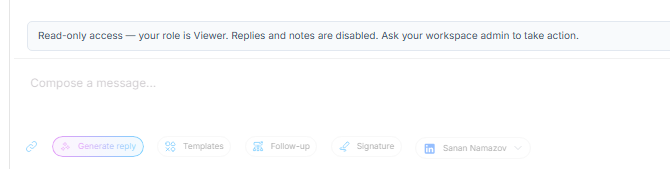
In the Unified Inbox: They can read the entire conversation history with a prospect. They cannot type replies, use message templates, or send anything. They will see a grey warning at the bottom of the chat reminding them of their read-only access.
In Pipelines: They can look at the Kanban board to see exactly where leads are in the sales cycle. They cannot create new pipeline boards, move leads into different columns, or edit the column names.
You're all set! 🤝 By utilizing the Viewer role, you can keep your entire team or client base completely in the loop while ensuring your perfectly crafted campaign setups stay exactly the way you built them.