By using AI Compose, you can let our AI read your prospect's last message and automatically draft the perfect response for you. Whether you need a quick custom response or want to build a library of saved templates, getting set up is incredibly simple.
Prompt Templates: You can create reusable AI prompts to draft new messages or refine existing ones.
Context-Aware Responses: The AI uses the prompt template and the last 20 messages in a thread to generate an accurate answer.
Message Enhancement: You can use the AI to shorten, polish, or otherwise improve messages directly in the text box.
First, you need to open an active conversation to draft your reply.
Navigate to your Inbox from the main left-hand menu.
Click on an email thread to view the active conversation.
At the bottom of the screen, just above your message editor, click the AI compose button (the sparkles icon).

Instead of typing instructions out every single time, you can build a reusable behavior template.
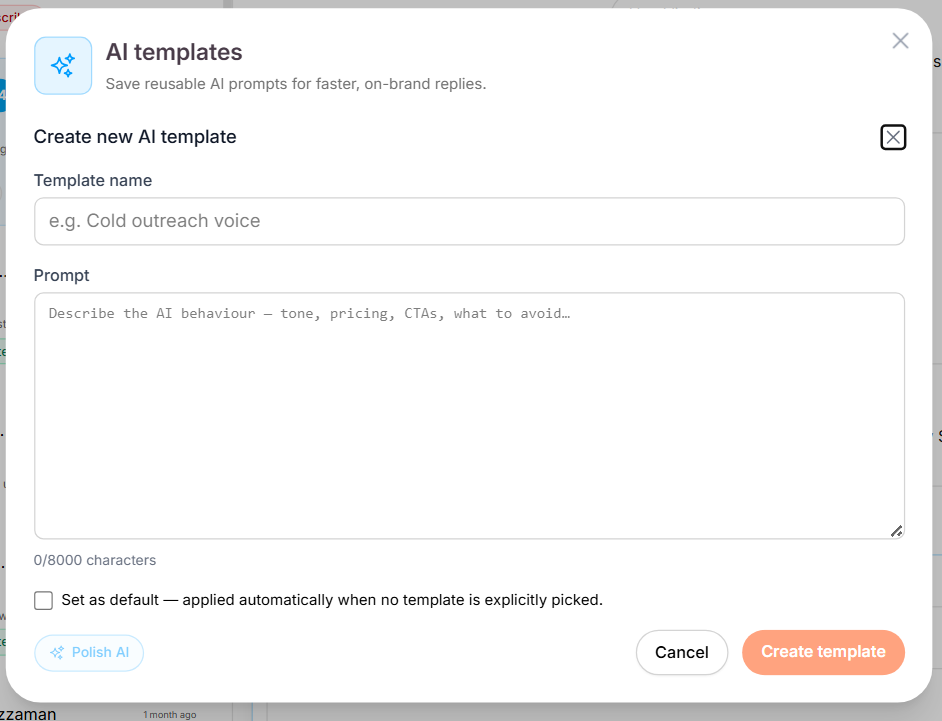
Click on AI templates, then select Create new.
Give your template a clear, recognizable title (e.g., "Booking an appointment").
In the prompt field, describe your desired AI behavior, tone, or specific details to include.
(Optional) Check the Set as default box to automatically apply these instructions to future emails.
Click Create template.
Click Use Template to load it into your active window.
From here, you have two choices: type a small, specific note into the text field to add a unique detail for this lead, or simply leave it blank.
Click the pink Generate button.
The AI will instantly read the template instructions, analyze the thread history, and draft a flawless response.
If you are happy with the draft, click Use this to drop the text directly into your standard email message editor.
Make any final tweaks, add your signature, and hit Send!
You are ready to hit send!
⚡ That is how you can easily use AI Compose to speed up your daily workflows. You can now build powerful prompt templates to manage your inbox in a fraction of the time.