Here is a complete guide to generating, customizing, and testing your AI-powered sequences.
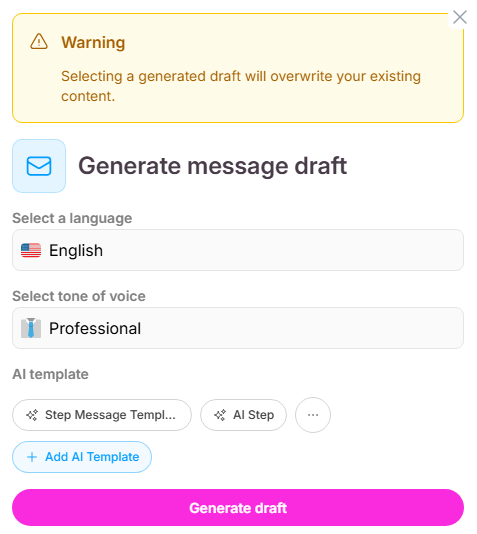
You can instantly build a personalized foundation for any step in your sequence using the AI drafting tool.
Click on any campaign step and select the "Generate first draft" option.
Choose your preferred language from the provided dropdown menu.
Adjust the tone of voice to fit your specific needs, selecting from options like Professional, Friendly, or Formal.
Select from the list of ready-made AI templates, or choose to create and edit your own custom templates.
Click "Generate draft" to command the AI to create the message.
If the resulting message isn't perfect, click "Generate again" to create a new version, or click "Select draft" to proceed with the current text.
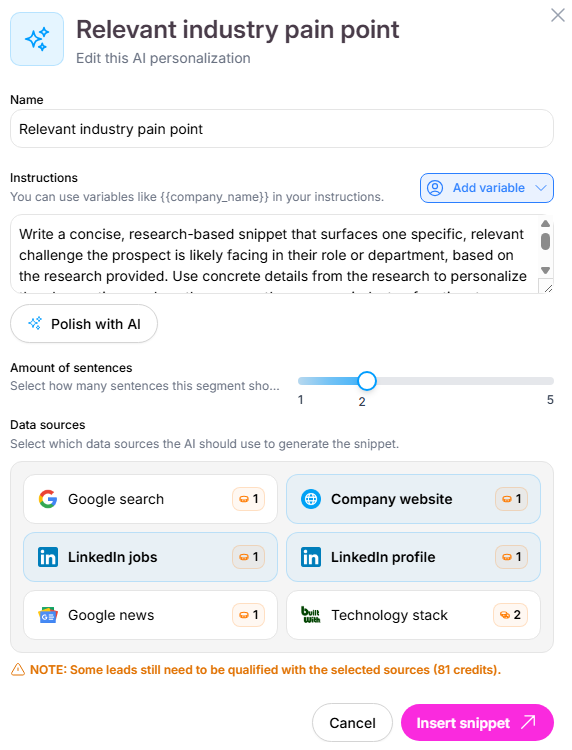
Once your draft is generated, you have full control over the specific data points the AI uses to customize the text.
Click directly on the highlighted AI snippets within your message to open their specific settings.
From this menu, you can change the data source, modify the amount of sentences generated, and add new variables directly to the snippet.
Use the AI message personalization menu to create entirely new custom personalizations, or select from the default options provided.
Access the variables menu to insert standard fields, or add and manage your own custom variables.
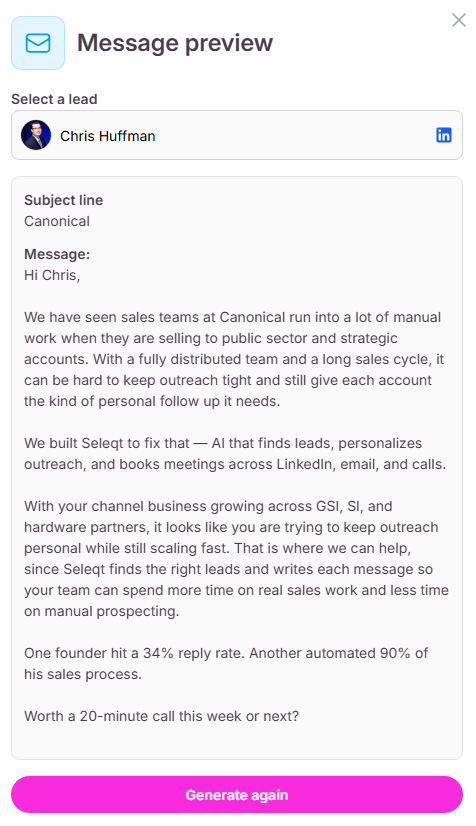
It is highly recommended to preview your messages to see exactly how the dynamic fields render for a real prospect.
Click the "Message preview" button to see how the copy will read for a specific target.
Select a specific lead from your list to populate the preview data.
The system will use that lead's LinkedIn profile and company information to dynamically generate a highly relevant pain point and value proposition.
If you are unsatisfied with the generated preview, you can click "Generate again" to re-process the prospect's data.
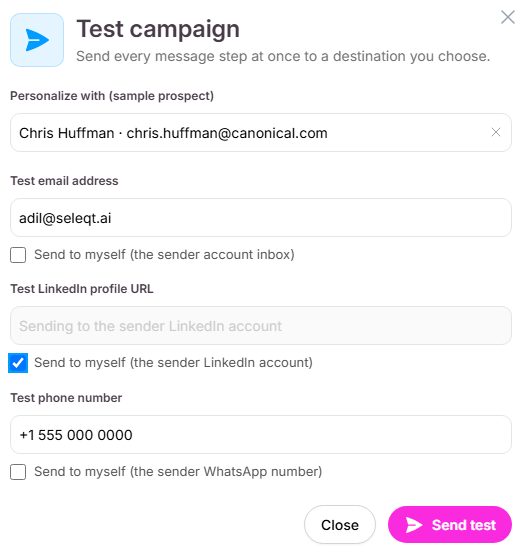
Before officially launching, you must test your campaign to verify the delivery and formatting of both your emails and direct messages.
Open the "Test campaign" menu to verify your setup before launching.
Select a sample prospect from your list to act as the test subject for your variables.
Type in a custom test email address, or check the box to route the email test directly to your sender account's inbox.
You can simultaneously test LinkedIn steps by checking the box to send the direct message to your own connected LinkedIn account.
Click "Send test" to receive the messages, allowing you to ensure everything looks flawless before pushing your campaign live.